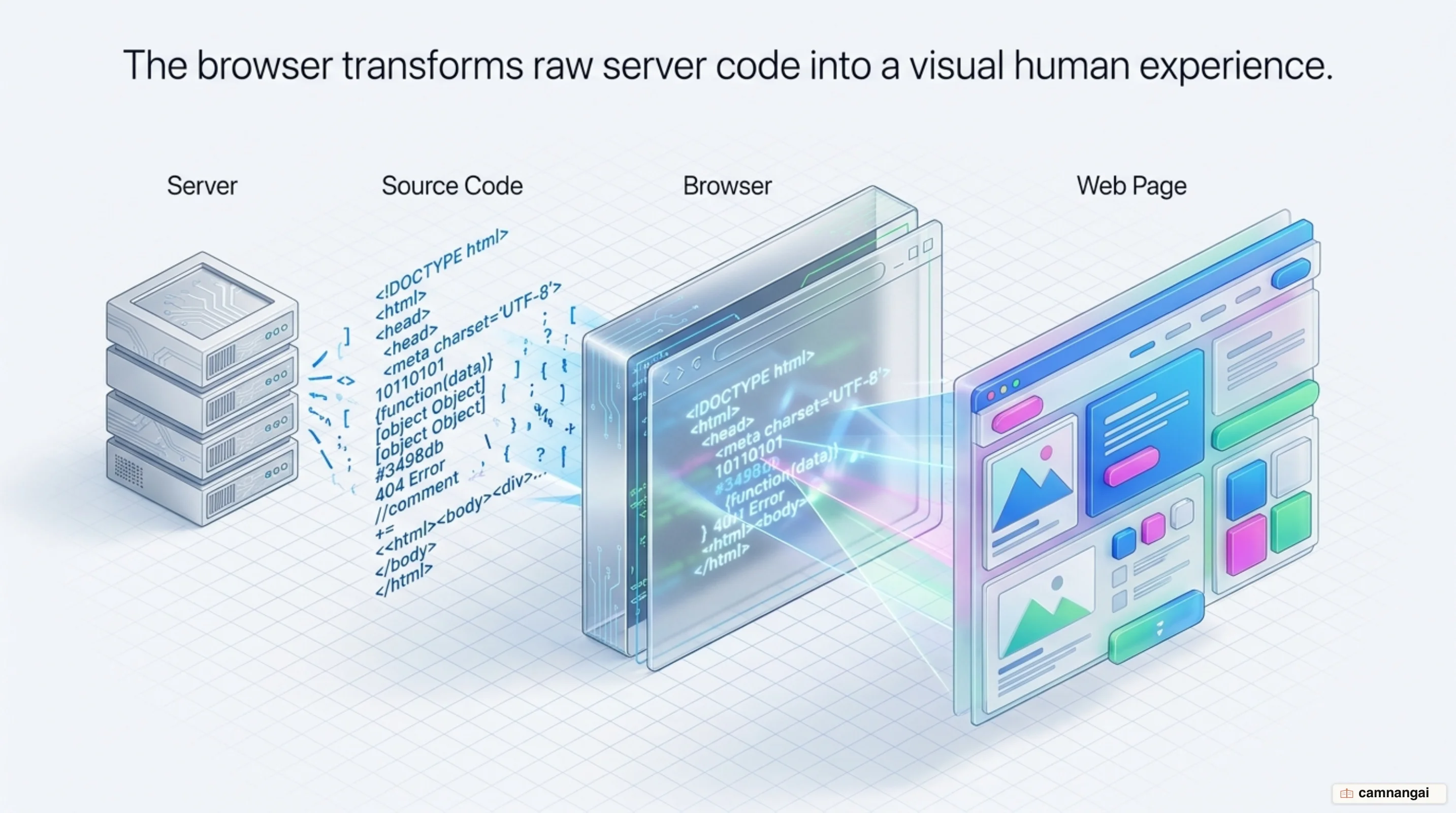
A web browser is application software — a rendering engine and a translator between remote web servers and the user's local interface.
It is an HTTP client that retrieves, processes, and displays resources from the World Wide Web. By fetching documents and assets — typically HTML, CSS, and JavaScript — the browser turns raw technical code into an interactive visual format people can navigate.
The browser manages the complex sequence of network requests, data parsing, and pixel-level rendering required to populate a page. It opens secure connections to remote IP addresses and interprets markup and scripting languages to build a functional UI. Without this translation layer, web content would exist only as fragmented data packets and unrendered text strings.
A browser is more than a viewer; it is a full execution environment. While graphical versions like Chrome or Safari are the industry standard, the underlying logic applies to all variants, including command-line tools.
Any application that consumes web APIs over HTTP and renders a structured response is, in effect, a customized browser.
What is a web browser?
A web browser is a local application that retrieves and displays content from the World Wide Web. Its main job is rendering: it downloads web documents and assembles their components — HTML for structure, CSS for presentation, and JavaScript for interactivity — into one coherent page. The same application reaches out to remote servers to fetch those assets, so you can view media and text from anywhere in the world.
A web browser and a search engine are not the same thing, though the two often get conflated. A browser is the actual software installed on a device, such as Chrome, Safari, or Firefox. A search engine is an external service, such as Google or Bing, that you reach through the browser to locate specific hostnames. The search engine is the index for discovery; the browser is the environment where the destination content is actually built and rendered.
The core interface of a modern browser provides standardized tools for resource management and navigation. You enter Uniform Resource Locators (URLs) in the address bar and use the navigation controls — back, forward, and refresh — to manage session history. Most browsers also support multi-tasking through tabs, saving pages for later with bookmarks, and extra functionality from extensions or plugins that hook into the browser's internal APIs.
While graphical user interfaces dominate the market, browsers exist across a spectrum of complexity. High-performance mainstream engines like Blink or WebKit provide rich visual environments, while specialized tools like Lynx give you a lightweight, text-based experience on the command line. Regardless of the interface, every browser follows the same fundamental lifecycle: resolving the destination IP address, fetching the document, and parsing the markup for the user.
What is inside a browser?
A modern browser's internals are built in coordinated layers. At the highest level is the User Interface (UI), which covers the address bar, menus, and tabs. Immediately beneath is the Browser Engine, the central controller. It orchestrates communication between the UI and the rendering engine, managing high-level actions such as navigation triggers and the coordination of the networking and data storage layers.
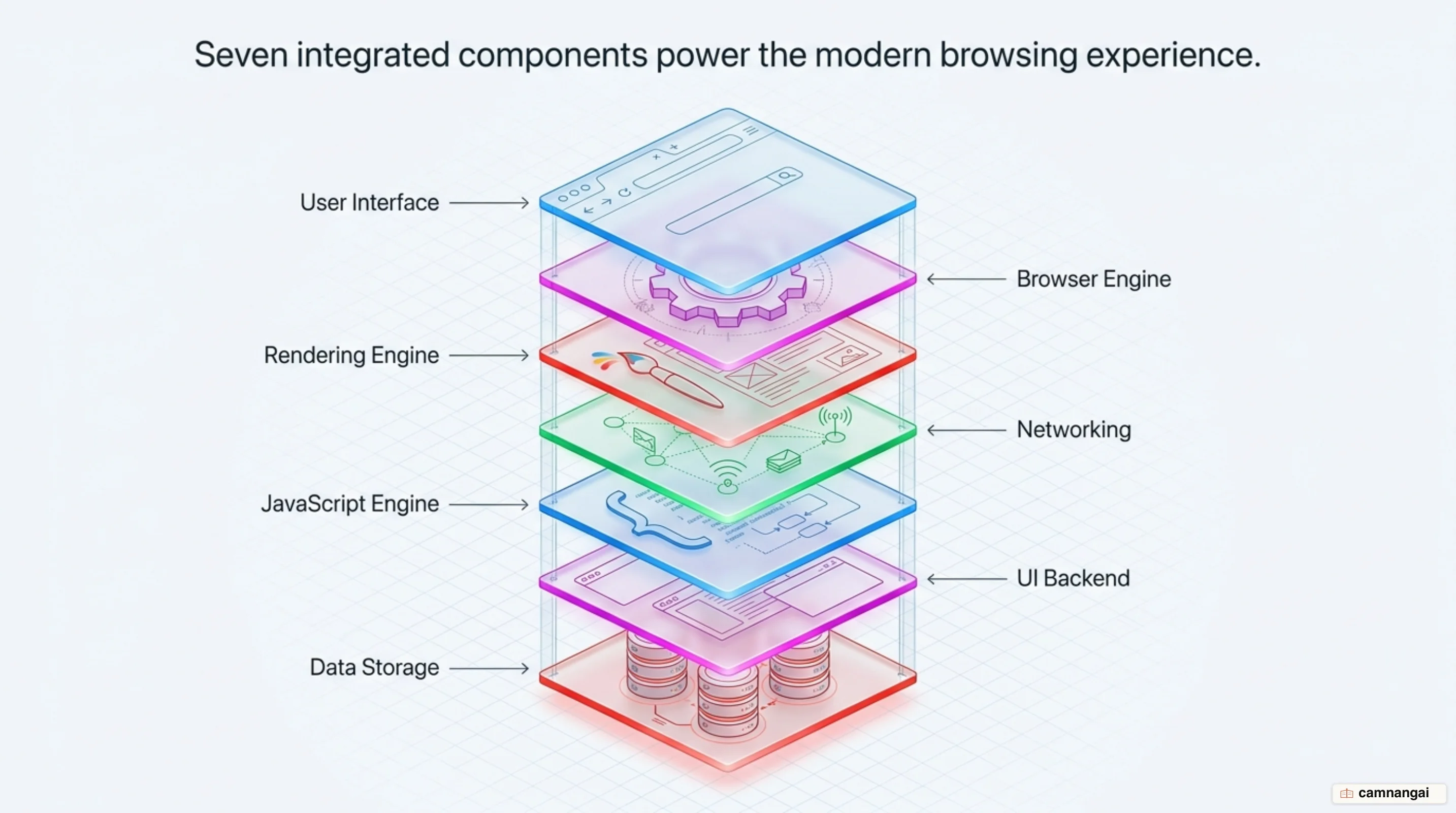
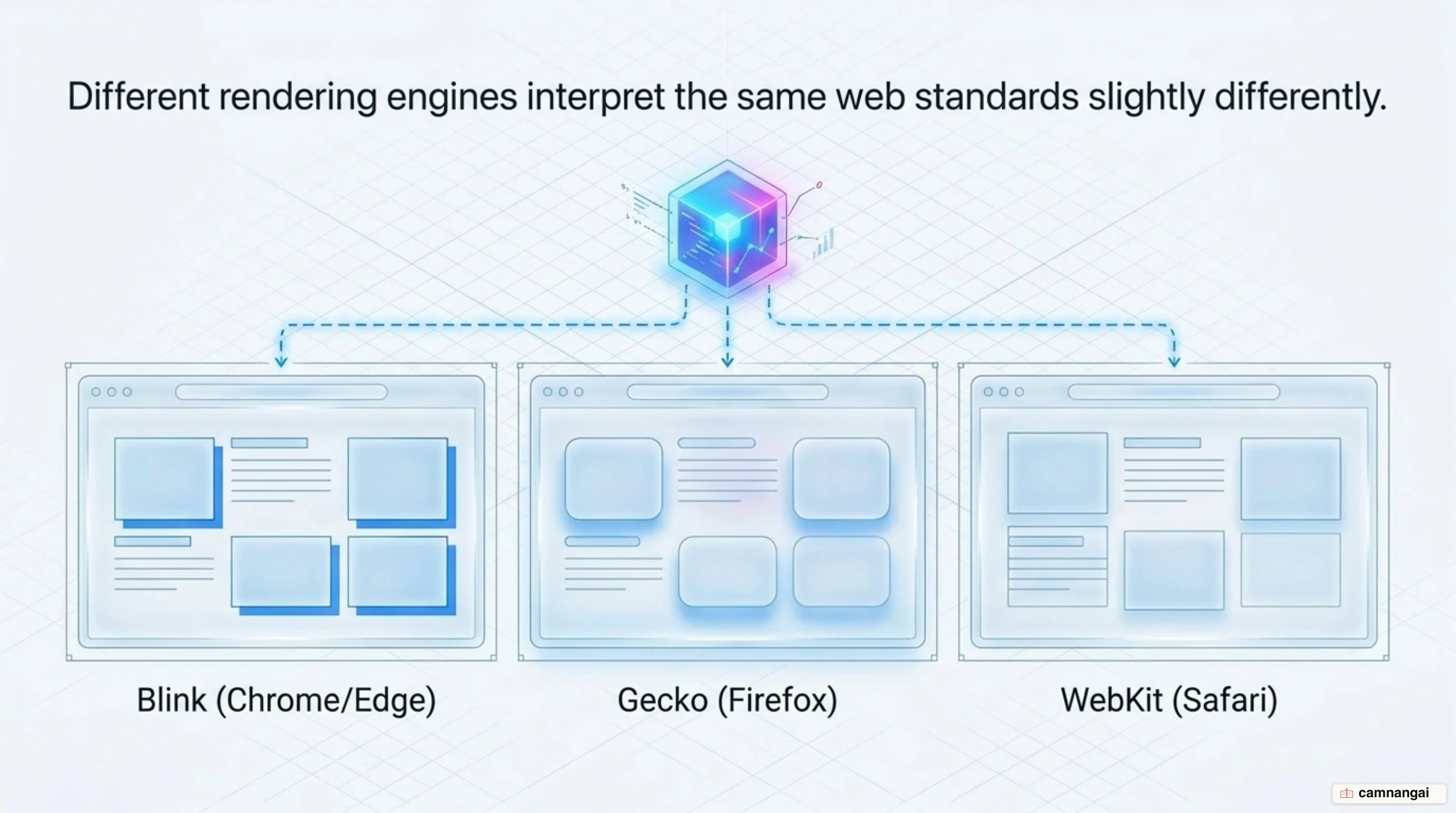
The Rendering Engine does the core work — turning code into visual output. Each vendor uses its own engine; they follow shared web standards but often vary in their handling of edge cases. Google Chrome and Microsoft Edge use Blink (a fork of WebKit), Mozilla Firefox relies on the Gecko engine, and Apple's Safari uses WebKit. These engine-level differences are the primary cause of cross-browser rendering inconsistencies.
The Networking Layer and the JavaScript Engine handle the functional side of the web experience. The networking component manages protocols like HTTP/HTTPS and handles the intricacies of DNS resolution. The JavaScript Engine — Chrome's V8, Firefox's SpiderMonkey, or Safari's JavaScriptCore — compiles and executes the code that enables interactivity. These engines are held to extreme performance requirements so that script execution does not cause main thread contention or input latency.
Finally, the browser uses a UI Backend and a Data Storage layer for low-level tasks. The UI Backend draws basic widgets like windows and combo boxes using the host operating system's own methods. The Data Storage layer manages persistent local information, including cookies used for session management, and the browser cache. The cache is critical for performance, as it stores local copies of assets to reduce Round Trip Time (RTT) on later visits.
From typing a URL to the first byte
The page-load sequence begins with navigation, where the browser must first perform DNS resolution to translate a human-readable domain name into a numerical IP address. Because a lookup must occur for every unique hostname — including fonts, images, and third-party scripts — DNS is often the first performance bottleneck. This is especially true on mobile networks, where the distance between the device and the authoritative name server adds noticeable latency.
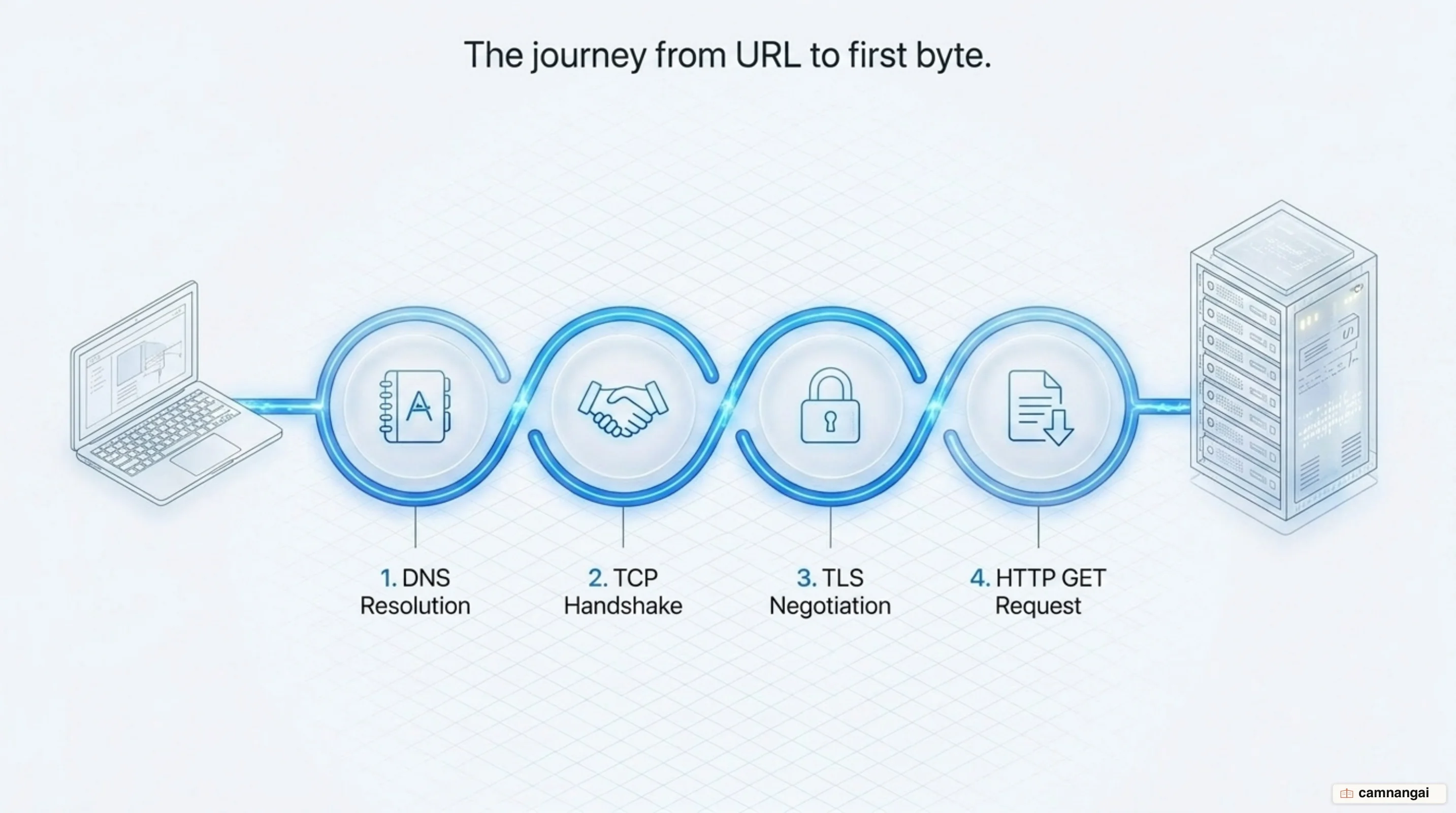
Once the IP is known, the browser initiates a TCP three-way handshake (SYN, SYN-ACK, ACK) to negotiate socket parameters. For secure HTTPS connections, the browser then performs a TLS negotiation to establish encryption and verify server certificates. This combined setup can require up to eight round trips to the server before the actual content request is sent, which makes connection overhead a major factor in perceived speed.
After the handshake, the browser sends a raw HTTP GET request to the server. This request identifies
the resource path and protocol version. In HTTP/1.1, the Host header is the only mandatory header,
though the browser typically includes Accept headers to specify which content types it can
process. The server then replies with response headers and the initial payload of the requested
document.
GET / HTTP/1.1
Host: google.com
Accept: */*
The delay between the initial request and the arrival of the first data packet is Time to First Byte (TTFB). The initial chunk is typically 14KB. To manage network congestion, browsers and servers use TCP Slow Start, where the Congestion Window (CWND) starts at a small value (1, 2, 4, or 10 MSS, the maximum segment size) and doubles with each successful acknowledgment (ACK). This mechanism balances bandwidth use against the risk of overwhelming the network.
How does a browser read HTML and CSS?
Parsing begins the moment the browser receives the initial 14KB packet. This is the stage where raw network data is transformed into the Document Object Model (DOM), a tree structure representing the document hierarchy. The parser tokenizes the HTML markup, converting tags into nodes. Because that first 14KB is where the biggest performance wins sit, developers must prioritize above-the-fold content within this initial payload so the first meaningful paint does not wait for a second RTT.
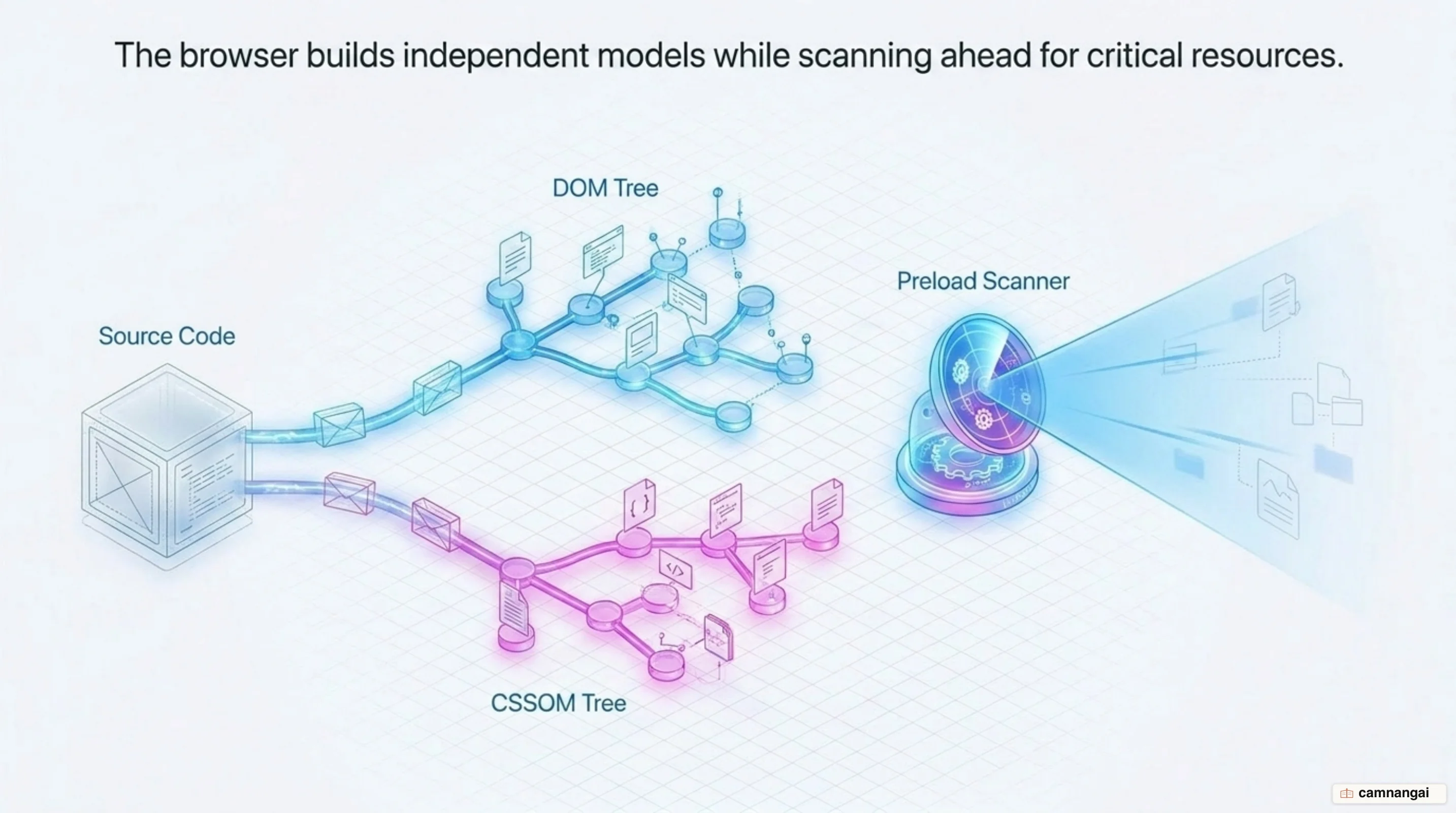
At the same time, the browser constructs the CSS Object Model (CSSOM). This independent tree structure maps style rules to their selectors, starting from the user agent stylesheet and cascading down to developer-defined styles. Building the CSSOM is highly efficient — often faster than a single DNS lookup — but it is a critical dependency for rendering. The total time for this phase is captured in developer tools as "Recalculate Style."
To save time, the browser uses a Preload Scanner. While the main thread is occupied with DOM construction, the scanner parses the remaining document in the background to find high-priority resources like external CSS, scripts, and web fonts. By starting these downloads early, the browser ensures that assets are in-flight or already cached by the time the primary parser reaches the corresponding elements, which cuts overall load time.
Certain resources block this process. Synchronous <script> tags without async or defer
attributes halt HTML parsing entirely. And while CSS does not block HTML parsing, it blocks
JavaScript execution because scripts often query the computed style of elements. Beyond the visual
trees, the browser also builds the Accessibility Tree (AOM), a semantic version of the DOM that
allows screen readers to interpret content for users with assistive devices.
From the DOM tree to pixels on the screen
The transition from data structures to visual output begins with the creation of the Render Tree.
This tree is formed by combining the DOM and CSSOM, containing only the nodes required to output the
page. Nodes marked with display: none are excluded from the render tree, as they do not participate
in the visual output, whereas nodes with visibility: hidden are included because they still occupy
physical space and impact the layout of surrounding elements.
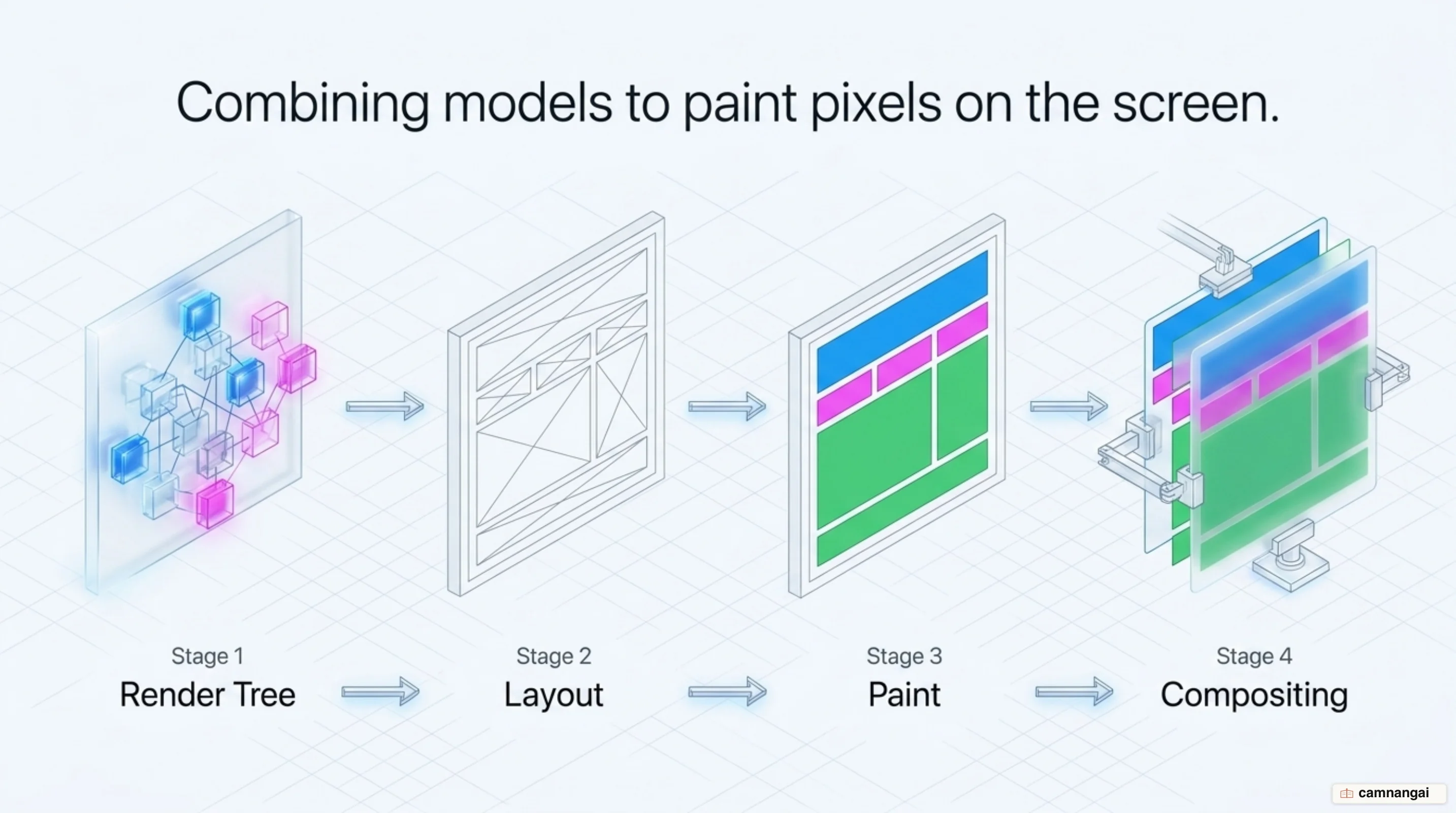
The next phase is Layout, also known as the initial Reflow. Here, the browser calculates the precise geometry — the coordinates and dimensions — of every box in the render tree based on the viewport size. This process is recursive, starting at the root node and traversing the tree to determine how the box model properties of each element interact. If item dimensions are not explicitly defined in the markup, the browser must provide placeholder space until the assets arrive.
Once geometry is established, the browser enters the Paint or Rasterization stage. This is where the calculated boxes are converted into actual pixels on the screen. Painting involves drawing text, colors, borders, and shadows. To ensure performance on high-resolution screens, browsers break the drawing process into several layers. This allows the browser to repaint only specific portions of the screen when small changes occur, rather than re-rasterizing the entire viewport.
The final step is Compositing, where individual layers are combined in the correct order for display.
Browsers can promote specific elements — such as <video>, <canvas>, or items with 3D transforms —
to their own layers processed on the GPU instead of the CPU's main thread. Layout is the initial
calculation; Reflow is the performance-taxing recalculation triggered by late-arriving assets or DOM
manipulation. GPU-accelerated compositing helps mitigate the performance cost of these reflows.
Why do pages stutter and load slowly?
Web performance is primarily constrained by main thread contention. In a modern browser, the main thread is responsible for almost every critical task: parsing HTML, building the CSSOM, executing JavaScript, and managing the layout and paint cycles. Because browsers are largely single-threaded, a long-running task will block the thread, preventing it from responding to user inputs like clicks or scrolls. The result is jank.
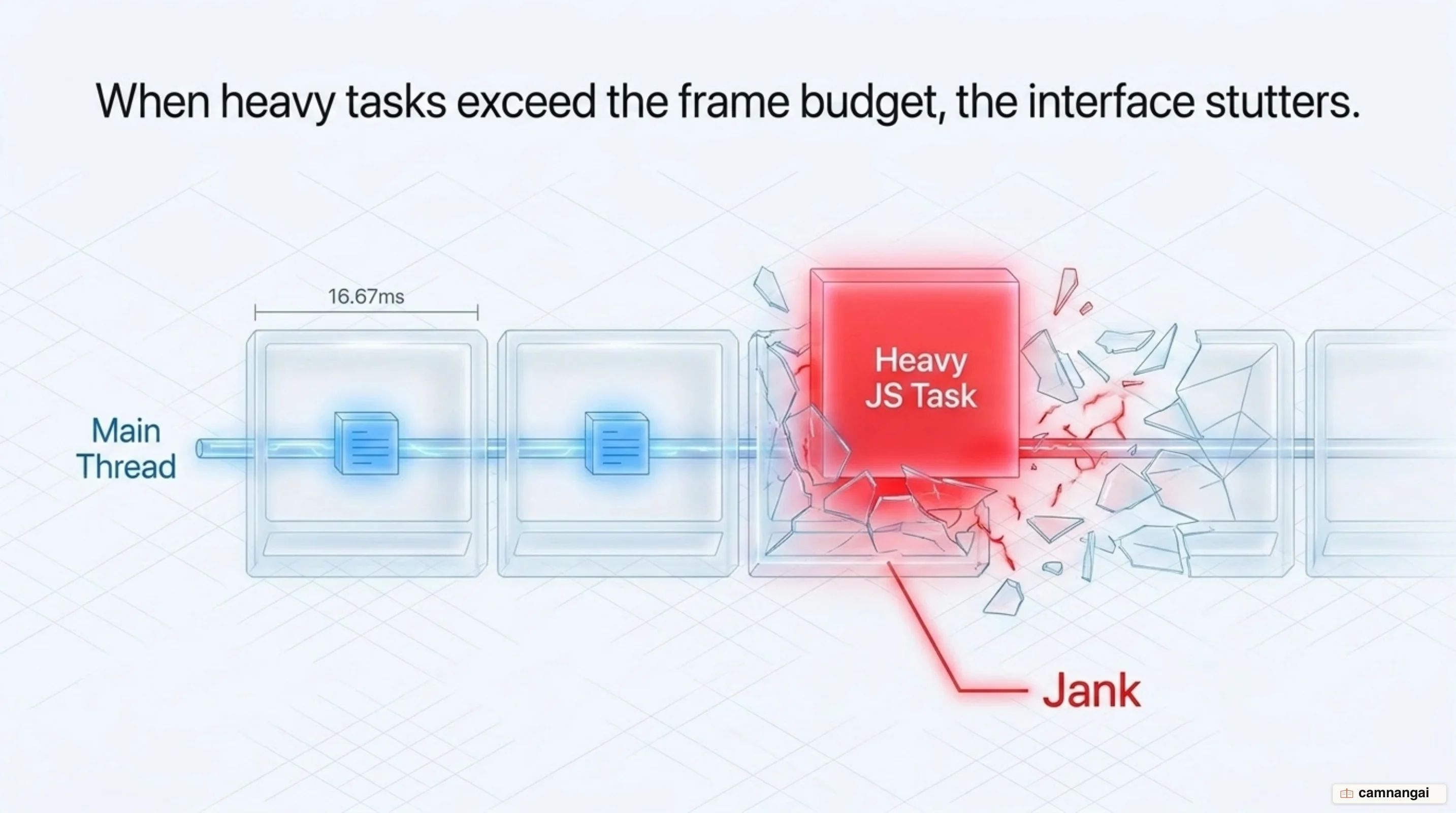
To maintain a smooth 60 frames per second, the browser must complete its work within a 16.67ms frame budget. If JavaScript execution exceeds this — especially scripts that run for over 1.5 seconds — the page becomes unresponsive. This delay pushes out Time to Interactive (TTI), which measures how long it takes for the page to respond to interactions within 50ms of the First Contentful Paint.
Latency and bandwidth are not the same thing. Bandwidth is the volume of data transmitted; latency is the time it takes for a signal to travel across the network. Even on a high-bandwidth fiber connection, high RTT can cause slow page loads because of the many handshakes required. Senior engineers focus on minimizing RTT and optimizing the Critical Rendering Path rather than simply reducing file sizes.
Late-arriving assets are another common cause of stutter. If an image is downloaded without pre-defined dimensions, its arrival triggers a reflow, forcing the browser to recalculate the positions of all subsequent elements. This causes content to shift and requires additional paint cycles. You can reduce this by defining box dimensions in advance and offloading heavy computations to web workers, keeping the main thread free for UI updates.
How far does a browser protect you?
Browsers implement deep security mechanisms to protect users from malicious code. The most critical is sandboxing, which isolates each website into its own restricted environment. This ensures that even if a site executes a malicious script, it is confined within the sandbox and cannot access the host operating system's file system or other running applications. This out-of-band protection is fundamental to modern browser security architecture.
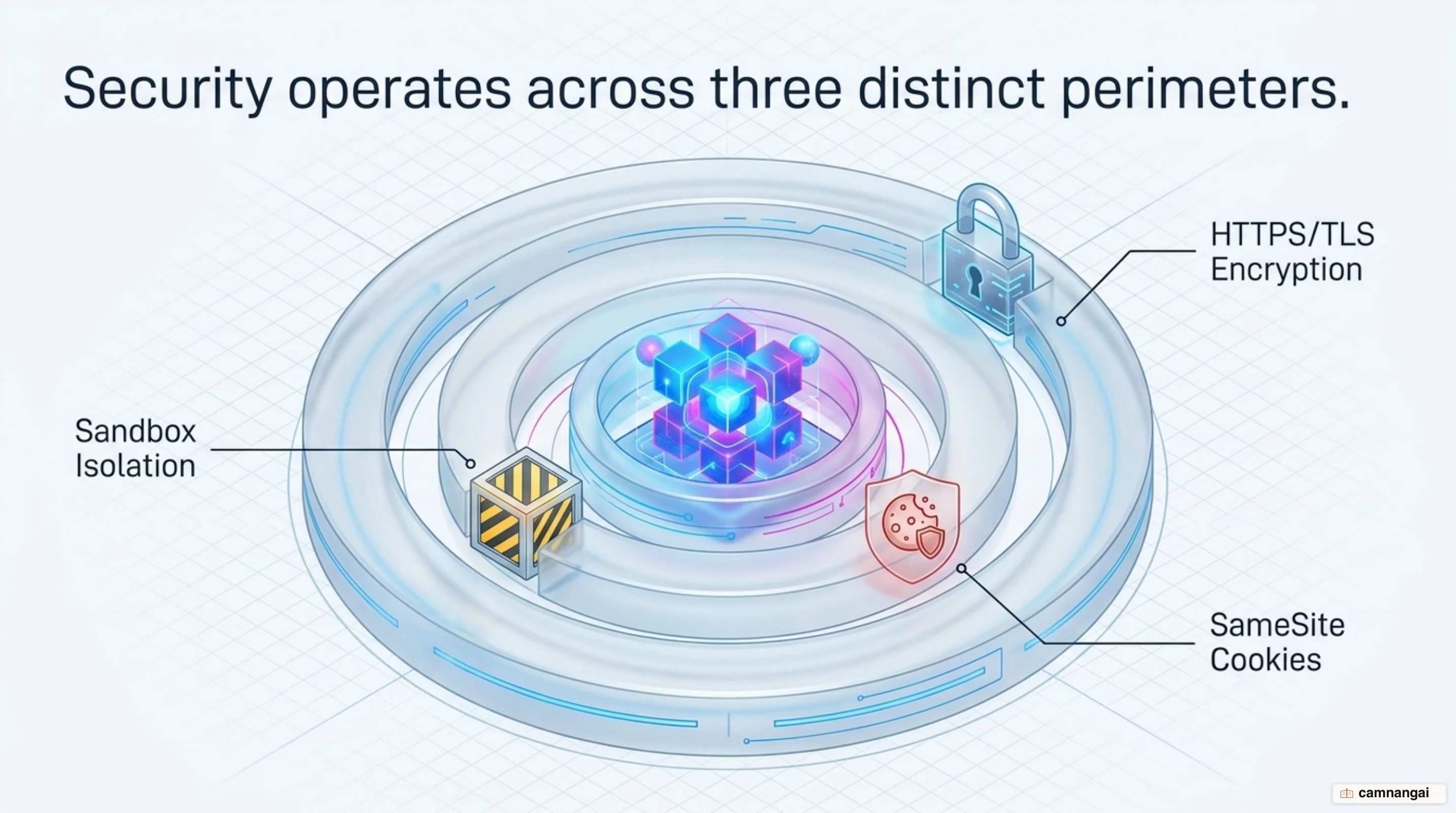
Encryption via HTTPS and TLS remains the standard for protecting data in transit. This protocol ensures that all exchanges between the client and server are encrypted, preventing man-in-the-middle attacks. Browsers provide visual cues, such as the padlock symbol, to show a secure connection. Without HTTPS, sensitive data like login credentials or credit card numbers is transmitted in plain text, making it trivial to intercept.
Privacy and session security are managed through cookie-level controls and tracker blocking. Features like SameSite cookies help engineers guard against Cross-Site Request Forgery (CSRF) by restricting when cookies are sent with cross-site requests. Modern browsers also include built-in tracking protection and private browsing modes, which ensure that browsing history, form data, and session cookies are purged immediately after the window is closed.
Browser vendors maintain security through continuous updates and specialized bug bounty programs. The Chrome Reward Program, for example, pays security researchers to identify vulnerabilities within the browser's own code. These patches address vendor-specific bugs that are separate from a developer's own site implementation. Because a vulnerability patched in one engine (like Blink) may still exist in another (like WebKit), user safety often depends on the vendor's specific patching cadence.
Why does the same page look different in different browsers?
Cross-browser inconsistencies arise because different rendering engines interpret web standards and edge cases with varying logic. Even though Blink, Gecko, and WebKit aim for W3C compliance, they may differ in how they calculate complex CSS properties like Flexbox or Grid. These subtle variations in interpretation can lead to broken layouts or font-rendering discrepancies on one engine while the page appears perfect on another.
Vendors also lag one another in implementing new Web APIs. Priorities vary across the industry; Safari, for instance, has historically lagged behind Chrome in implementing standards like SameSite cookie support or newer service worker APIs. When a site relies on a brand-new API that a specific browser has not yet implemented, the functionality will fail unless you have provided a polyfill or fallback.
Execution speeds vary because of the distinct optimization strategies used by JavaScript engines. Chrome's V8, Firefox's SpiderMonkey, and Safari's JavaScriptCore use different Just-In-Time (JIT) compilation techniques. A script-heavy application may feel noticeably faster in one browser than another, depending on how well the engine compiles and runs the specific code patterns in the application.
Device-specific factors compound these discrepancies. A browser running on an iPhone is constrained by Apple's requirement that iOS browsers use the WebKit engine, regardless of their branding. Since iOS 17.4 Apple permits alternative engines, but only for users in the European Union and only under a restrictive entitlement program, so WebKit remains mandatory everywhere else. Differences in GPU capabilities, memory constraints, and pixel density between a desktop and a mobile device also mean that the same engine will produce different performance profiles and visual results depending on the hardware context.
What changes in how you build for the web
Because users are fragmented across diverse rendering engines and hardware with varying constraints, systematic cross-browser testing is a technical requirement, not an option. Validate business-critical conversion paths on real devices to account for variations in how engines manage memory and process CSS. If you skip real hardware, you often get silent failures — the page looks correct but does not work for part of your audience.
Prioritize web standards and established protocols over vendor-specific hacks to ensure long-term stability and security. Standards-compliant code makes regressions less likely when browser vendors update their engines. And verify that above-the-fold content fits within the initial 14KB payload, so the Critical Rendering Path stays short and network latency costs the user as little as possible.