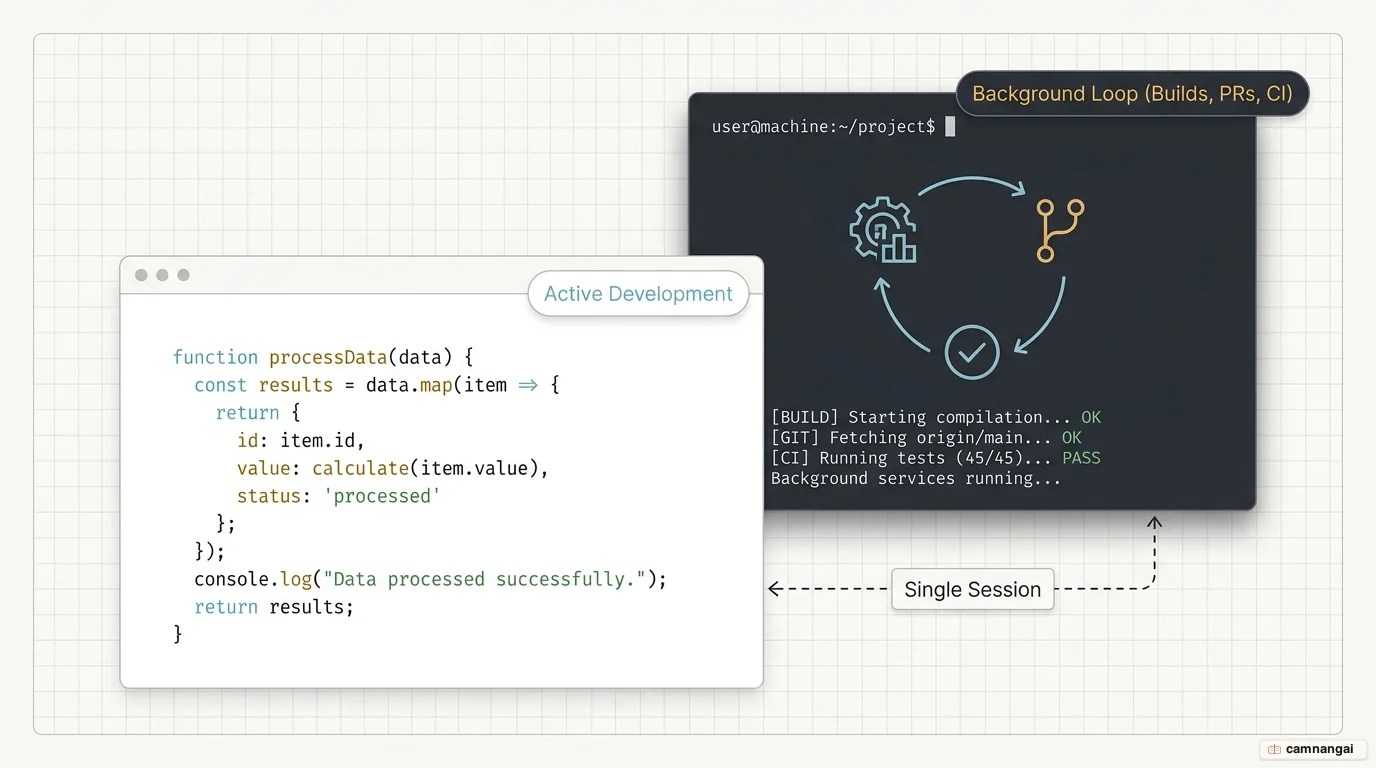
The loop command in Claude Code is an in-session automation tool that schedules prompts to run at set intervals.
For anyone who spent the early days of Claude Code hand-rolling "Ralph Wiggums" loops (iterative,
self-referential prompts used to verify a task was actually done),
the /loop command turns that workflow into a first-class citizen of the CLI.
To use these scheduling features you need Claude Code v2.1.72 or later. Tasks are strictly session-scoped: they are tied to your current conversation and need the terminal to stay open and idle to fire. If you are mid-response or the terminal is closed, the task waits in a low-priority queue until the next idle window.
What is /loop and how does it run?
The /loop scheduler checks every second for due tasks, but it runs at low priority. A scheduled prompt never interrupts you while you are typing or while Claude is generating a response; instead it enqueues the task to fire during the next idle period between turns.
To protect the API from "thundering herd" congestion (thousands of clients hitting it at the same wall-clock second), Claude applies a deterministic jitter. For recurring tasks the offset can be up to 30 minutes, or up to half the interval for tasks running more often than once per hour. One-shot reminders scheduled for the top or bottom of the hour may fire up to 90 seconds early. The jitter is derived from the task ID, so a given task always gets the same offset, and it does not apply to dynamically scheduled loops. Deterministic is the right call here, because a random offset would make a misfiring loop nearly impossible to reproduce.
All tasks use your local timezone and survive a claude --resume or claude --continue. One exception matters for DevOps work: background Bash and monitor tasks are never restored on resume. The session context returns, but those active processes must be restarted by hand.
The three ways to call /loop
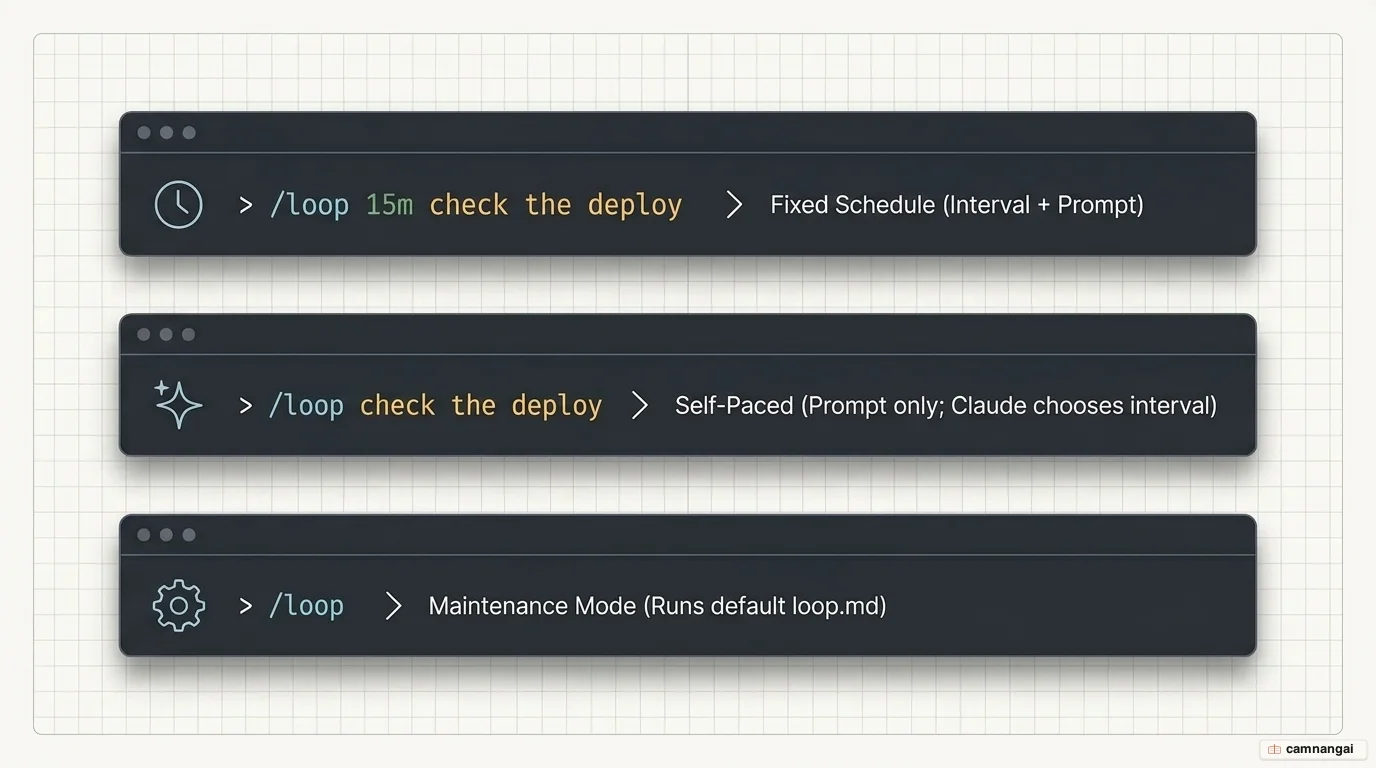
/loop adjusts its behavior to the level of detail you give it:
- Interval and prompt — a fixed schedule. A unit like
5mfollowed by a task runs the prompt on a strict cadence. - Prompt only (self-paced) — Claude enters a dynamic mode, watches the output of each iteration, and picks a delay between one minute and one hour based on activity.
- Interval only, or nothing — this triggers the built-in maintenance prompt. If a
.claude/loop.mdfile exists in your project, Claude uses those custom instructions instead.
# Poll a specific PR for status changes every 20 minutes
/loop 20m /review-pr 1234
Fixed intervals, self-paced mode, and cron
Claude Code supports standard time units: seconds (s), minutes (m), hours (h), and days (d). Because the underlying cron system has one-minute granularity, any second-based interval is rounded up, so /loop 30s is really a /loop 1m wearing a costume.
In self-paced mode (prompt only), Claude often uses the Monitor tool to stream output lines back to the session. That is far more token-efficient than re-running a full prompt on an interval, since it avoids redundant context processing. For more complex logic, the CronCreate tool follows standard vixie-cron semantics for five-field expressions.
| Expression | Meaning |
|---|---|
*/5 * * * * | Every 5 minutes |
0 9 * * * | Every day at 9:00 AM local time |
0 9 * * 1-5 | Weekdays at 9:00 AM local time |
Customizing the default with loop.md
A loop.md file overrides the default maintenance prompt with your own instructions. Claude follows a strict lookup order: a project-level .claude/loop.md takes precedence over a user-level ~/.claude/loop.md.
These files replace the built-in maintenance instructions and are capped at 25,000 bytes. Because Claude re-reads the file on each iteration, you can refine the instructions in real time without restarting the loop, which is the part of this feature I would not give up.
Check the current branch for failed CI runs.
If a failure is found, analyze the logs,
summarize the root cause, and suggest a fix.
Managing, stopping, and one-time reminders
Stop an active loop by pressing Esc while Claude waits for the next interval. For broader control, use natural language: "list my tasks" or "cancel the CI monitor".
Under the hood those commands wrap the CronList and CronDelete tools. Every task gets a unique 8-character ID, which is the key for managing it. You can also create one-shot tasks by describing a reminder in natural language; these single-fire events purge themselves from the 50-task session limit once they run.
Real-world /loop examples
Reach for /loop when you want an agent to keep watch on a cadence: polling a live
process, or running a recurring maintenance sweep on a schedule. /loop is for hot polling
inside your current session; for maintenance that should run whether or not your terminal is
open, the same prompt goes into a scheduled task (/schedule, or CronCreate for a raw cron
expression). Every guardrail and stop condition lives inside the prompt itself.
Watch a single PR until it's ready
A self-limiting poll: check a PR every 20 minutes for up to an hour, report status each cycle, then stop the moment CI is green and reviews are clear, or the moment it is clearly stuck.
/loop every 20 minutes for up to 60 minutes, check PR #123 and report CI status, latest
review comments, and merge conflict status. Stop successfully when CI is green, there are no
unresolved requested changes, and no merge conflicts remain. Stop early if the same failure
appears twice or a review comment needs product judgement. Output the current PR status,
blockers, and next recommended action.
Keep docs in sync with code, daily
A recurring sweep that runs once a day, opens a docs-only PR whenever documentation drifts from the implementation, and never touches the code itself.
/schedule daily: compare docs against the current implementation. If docs and code are out
of sync, open a docs-only PR. If docs contain errors, fix them in the same PR. Do not change
implementation code. Stop if the correct behavior is unclear.
Triage the issue backlog every Monday
A weekly scheduled run that keeps the backlog clean: fixing labels, catching duplicates and stale tickets, and closing issues only when policy clearly allows.
/schedule every Monday morning triage the GitHub issue backlog. Fix labels, identify
duplicates, correct stale states, and report anything that needs maintainer judgement. Close
issues only when project policy clearly allows it. Success means every issue is labelled,
closed, or blocked with a clear note.
Need a bounded completion condition instead of a scheduled watch? See the /goal command.
When to use — and not use — /loop
I pick the automation tier on reliability first and cost second. /loop is your tool for hot polling during active development, but it lacks the durability of a system-level cron.
| Feature | Cloud Tasks | Desktop Tasks | /loop |
|---|---|---|---|
| Minimum interval | 1 hour | 1 minute | 1 minute |
| Persistence | Permanent | Permanent | Session-scoped |
| Requirements | Anthropic Cloud | Machine on | Open session & idle |
Use /loop when you need to monitor a build, poll a deployment, or summarize PR comments while you are actively working in the terminal. Avoid it when you need 24/7 uptime, catch-up logic for fires missed while your machine was off, or production-critical monitoring. To disable scheduling entirely, set the environment variable CLAUDE_CODE_DISABLE_CRON=1.