PowerShell is a cross-platform task automation solution made up of a command-line shell, a scripting language, and a configuration management framework built on the .NET Common Language Runtime (CLR).
You use it to manage operating systems and application environments.
Unlike traditional shells that process byte-streams or strings of text, PowerShell accepts and returns .NET objects, so the data you work with stays structured and deterministic.
PowerShell runs natively on Windows, Linux, and macOS. It is preinstalled on modern Windows systems, and the open-source release (PowerShell 7+) keeps your administrative logic the same across mixed infrastructure. Beyond the interactive shell, PowerShell is an automation platform you also use to build, test, and deploy in CI/CD environments.
As a configuration management framework, PowerShell implements Desired State Configuration (DSC). Engineers manage enterprise infrastructure through declarative "configuration as code" — deployments repeat exactly, and the system reports configuration drift across the environment.

What is PowerShell?
PowerShell's architecture came out of the "Monad Manifesto," which set out a shell built to get past the limits of text-based interfaces. Legacy shells rely on manual string parsing and external utilities; PowerShell gives you direct access to .NET objects. That design makes it a discoverable management layer covering both quick interactive commands and full software development.
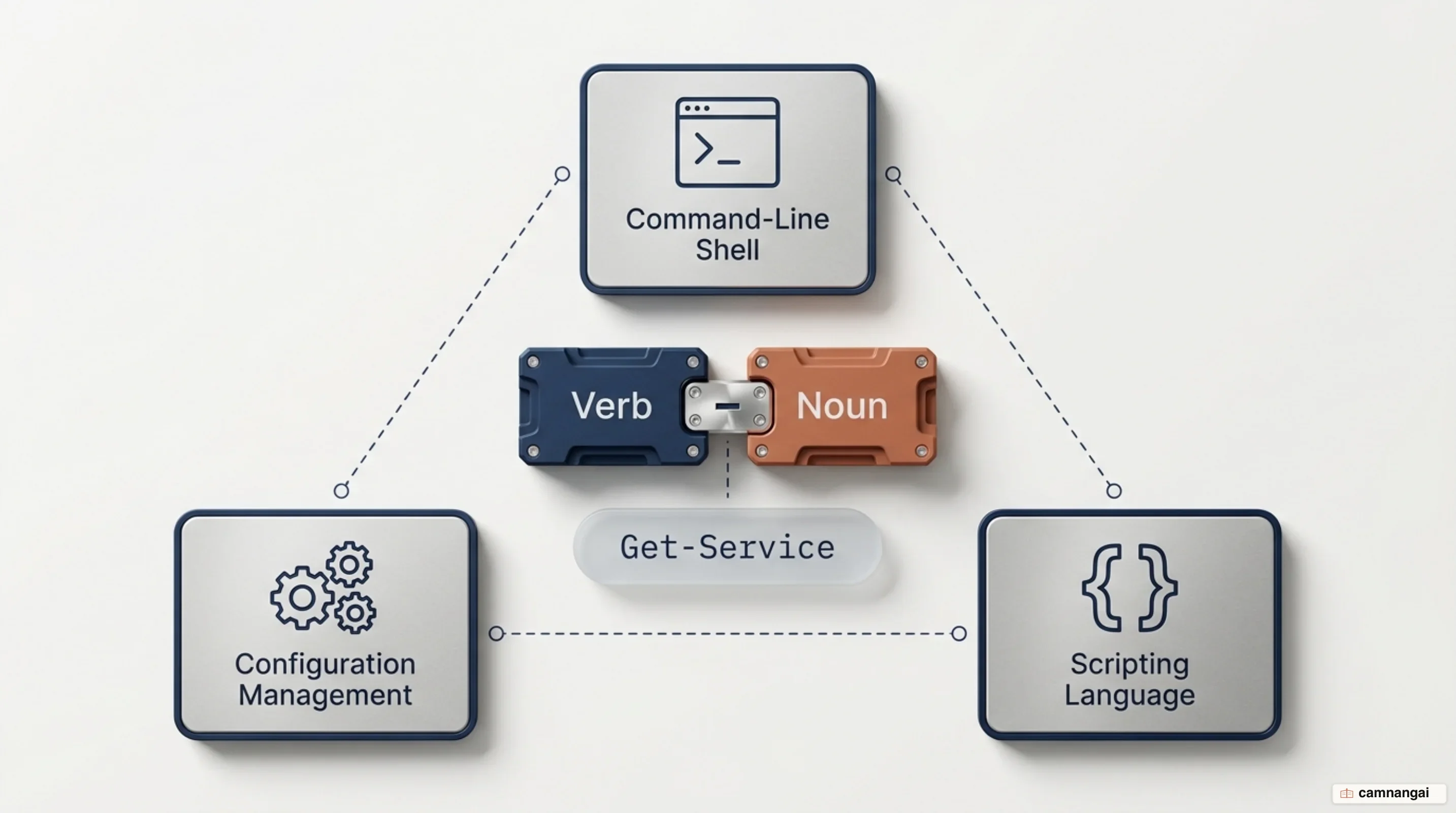
Cmdlets, the native commands in PowerShell, use a "Verb-Noun" syntax, such as Get-Service or New-Item. The naming convention makes commands easy to guess — if you want process information, the cmdlet is Get-Process. The same pattern holds whether you run first-party Microsoft modules or third-party extensions from the PowerShell Gallery.
PowerShell is extensible through modules: you import specialized cmdlets for technologies like SQL Server, Azure, and AWS. Because the shell is built on the .NET CLR, it can reach the underlying framework types, methods, and classes directly. You get deep system integration that behaves the same on every host.
Key components: shell, language, and framework
PowerShell is two things at once: an interactive CLI and a full-featured scripting language. As a CLI, it gives you command history, tab completion, and command prediction via PSReadLine. As a language, it supports classes, functions, and structured error handling (try/catch/finally) — enough to automate complex administrative workflows and infrastructure management.
Why does PowerShell return objects instead of text?
In traditional shells like Bash or CMD, commands output plain text. Pulling out one piece of data, such as a process ID, means parsing that text by hand with grep, awk, or sed. PowerShell is object-based: commands return .NET objects that carry properties (data) and methods (actions). Run a cmdlet and you get back a live object you can manipulate in code, with no string parsing.
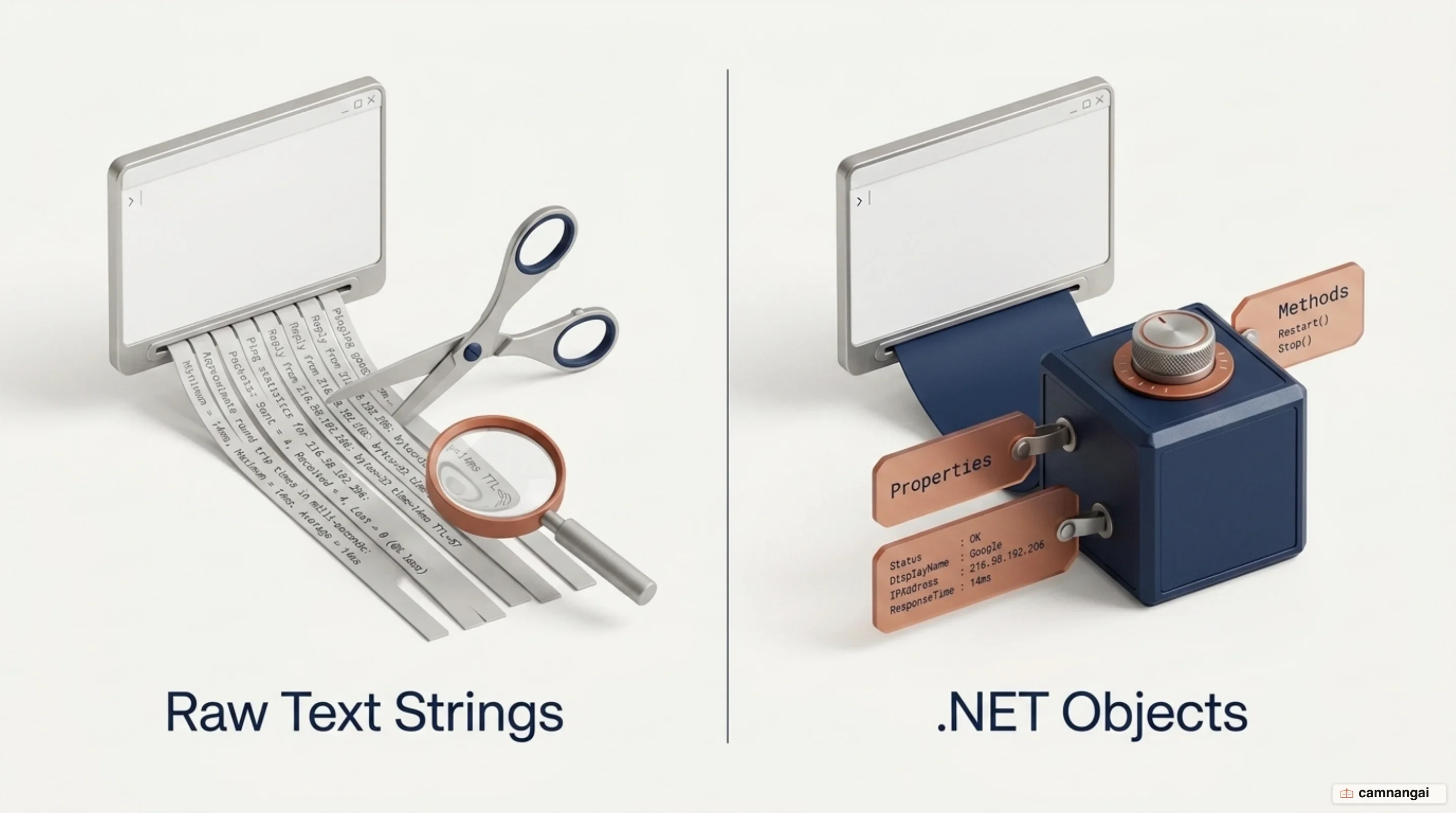
The pipeline operator (|) is where that design pays off. A text-based shell passes a stream of bytes; PowerShell passes entire objects to the next command. It does this through "Parameter Binding" — the shell works out how to match piped objects to the receiving cmdlet's parameters. Binding happens first ByValue (matching the .NET type), then ByPropertyName. That is why Get-Service | Stop-Service works without explicit parameters: the service object is bound by type automatically.
Passing objects keeps data intact across complex command chains. Because the shell understands the data structure, you can do fine-grained work — calculating standard deviation on system telemetry, or converting process lists to JSON — in a single line. Fewer parsing errors, and your effort goes to managing system components instead of formatting strings.
Working with object properties
Use the Get-Member cmdlet to inspect an object's structure and available members. It shows the properties you can filter on and the methods you can invoke. Get-Member drops duplicate types by default — if a stream contains multiple objects of the same class, it displays the member set only once.
Get-Process | Get-MemberOnce you know the properties, you can filter objects with Where-Object (e.g., Where-Object {$_.CPU -gt 10}) and order them with Sort-Object. Both cmdlets are built for the pipeline, so you refine and transform data while it is still moving through the execution stream.
How is PowerShell different from CMD and Bash?
The Command Prompt (CMD) is a legacy command interpreter with limited scripting capabilities. Its output is plain text, which makes it rigid and a poor fit for complex data manipulation. It has no advanced logic, no loops, and none of the deep .NET integration you get in PowerShell. CMD is still useful for lightweight diagnostics and for running legacy batch files, but it cannot manage modern, large-scale cloud infrastructure effectively.
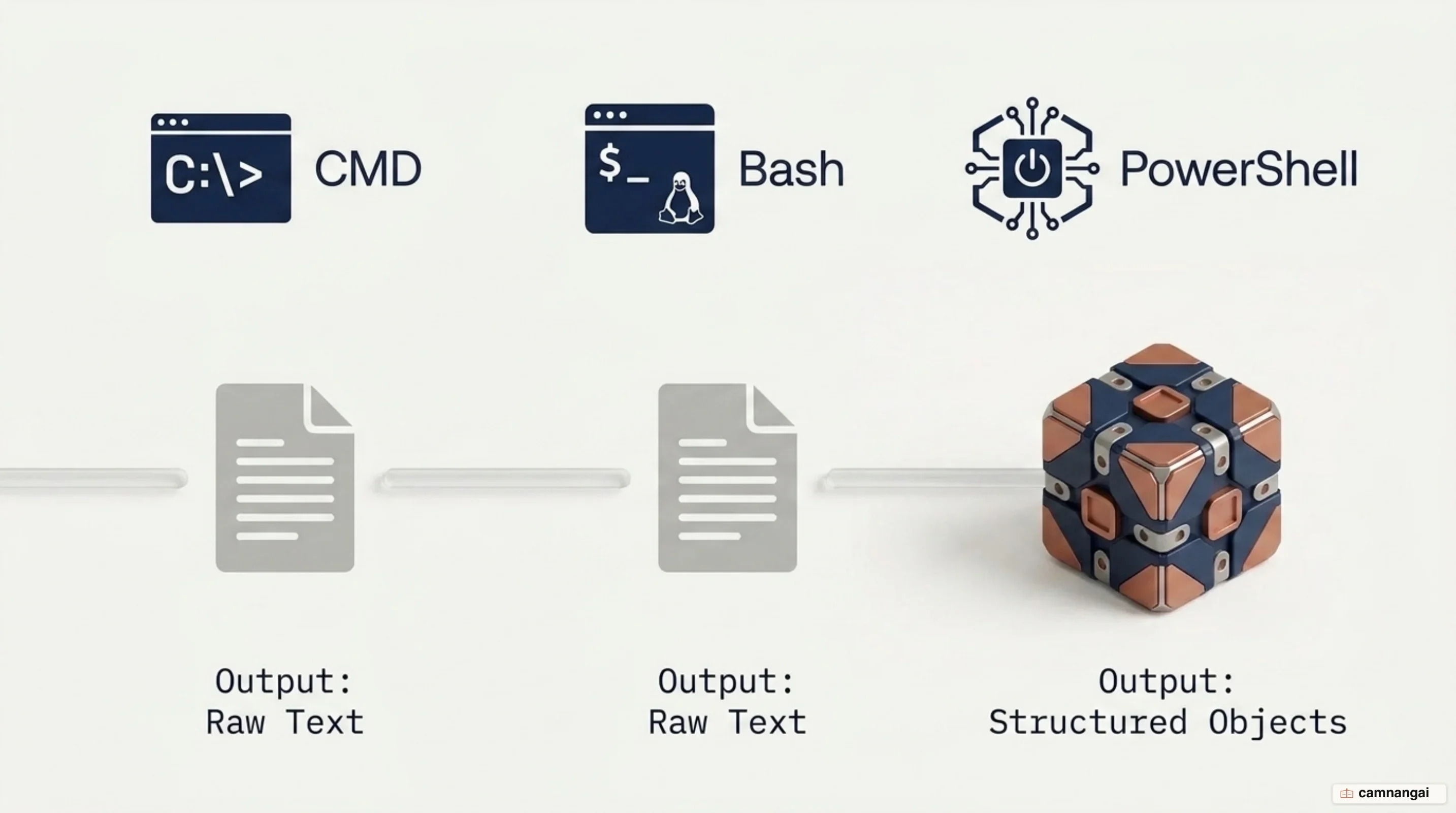
Against Bash, the difference is object-oriented versus text-oriented pipelines. Both chain commands, but Bash pipes are byte-streams that still need text parsing. Bash grew out of the multi-user terminal history of Unix and was designed for file manipulation and system-level operations. PowerShell was designed for configuration management, and it works natively with structured data formats like JSON, XML, and CSV.
Because PowerShell sits on the .NET framework, it can reach the CIM (Common Information Model) subsystem for deep-level system telemetry. Bash is often preferred for its stability on Linux, but PowerShell 7 brought object manipulation and cross-platform automation to those same systems.
Feature comparison
| Feature | PowerShell | Command Prompt (CMD) | Bash |
|---|---|---|---|
| Output type | .NET objects | Plain text | Plain text (strings) |
| Platform support | Windows, Linux, macOS | Windows only | Linux, macOS, WSL |
| Scripting capability | Advanced (full language) | Basic (batch files) | Advanced (shell scripting) |
| Extensibility | Modules and .NET libraries | Limited | High (via packages) |
Windows PowerShell 5.1 vs PowerShell 7
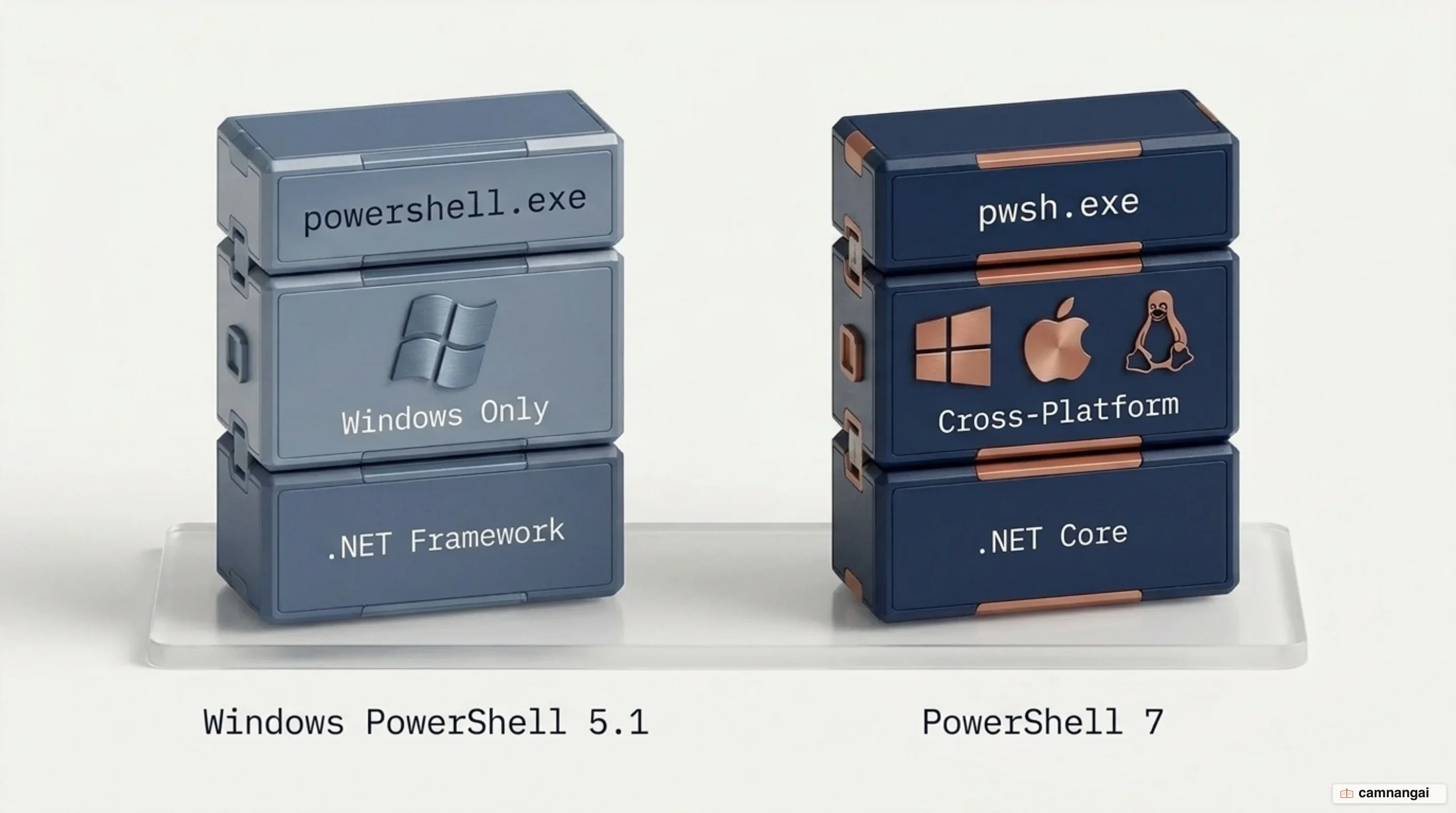
The main difference between Windows PowerShell 5.1 and PowerShell 7+ is the underlying framework. Version 5.1 is built on .NET Framework 4.5 (Windows-only), while PowerShell 7 is built on .NET Core (including .NET 6, 8, and 9). For instance, PowerShell 7.4 is built on .NET 8 (LTS), so it carries long-term production stability. To support side-by-side installation, the executable was renamed from powershell.exe to pwsh.exe.
PowerShell 7 changed the first positional parameter from -Command to -File. That makes shebang (#!) lines work correctly on Linux, and it changes how scripts are invoked from external shells. Language additions in version 7 include null-coalescing operators (??, ??=), null-conditional operators (?., ?[]), and parallel execution support in ForEach-Object via the -Parallel parameter.
To keep production installs current, PowerShell 7.2 added support for Microsoft Update for lifecycle management. It also includes the WindowsPowerShellCompatibility feature, which loads legacy 5.1 modules by running them implicitly in a background Windows PowerShell process.
Deprecated features and module compatibility
Moving to .NET Core removed the features that relied on Windows-only APIs. That includes PowerShell Workflow and the Windows Management Instrumentation (WMI) v1 cmdlets, such as Get-WmiObject. You have to use CIM cmdlets (WMI v2) instead; they have redesigned syntax and better performance. Web cmdlets like Invoke-WebRequest in PowerShell 7 also lost the ParsedHtml and Forms properties, because .NET Core lacks Internet Explorer interoperability.
How do you start using PowerShell?
To find PowerShell on Windows 11, use the search bar to spot the versioned shortcuts. On 64-bit systems, you will see shortcuts for both the 64-bit console and the 32-bit (x86) version. Use the 64-bit version unless you need the x86 console for legacy 32-bit module compatibility. The Windows PowerShell ISE (Integrated Scripting Environment) is still included, but it is a legacy tool limited to version 5.1; Visual Studio Code with the PowerShell extension is the recommended environment for development and debugging.
In production, the console is fine for single commands, but build anything complex in an editor with real debugging and source control integration.
Installation and deployment methods
On Windows client machines, use the Windows Package Manager (winget) to install or update to the latest stable version. It is the recommended way to stay on the current release.
winget install --id Microsoft.PowerShell --source wingetAdministrators can deploy PowerShell via MSI packages for enterprise-wide management on Windows Servers. Other options: ZIP archives for side-loading multiple versions, and .NET Global tools for developers who already use the .NET SDK.
Why won't your script run?
The Execution Policy is the most common barrier to running a script. It is a safety feature that stops you running one by accident, but it is not a security boundary — users can bypass it easily with the -ExecutionPolicy Bypass flag at launch. The default policy on Windows clients is Restricted, which blocks all scripts from running. Other policies include RemoteSigned (local scripts run, downloaded scripts must be signed) and Unrestricted.
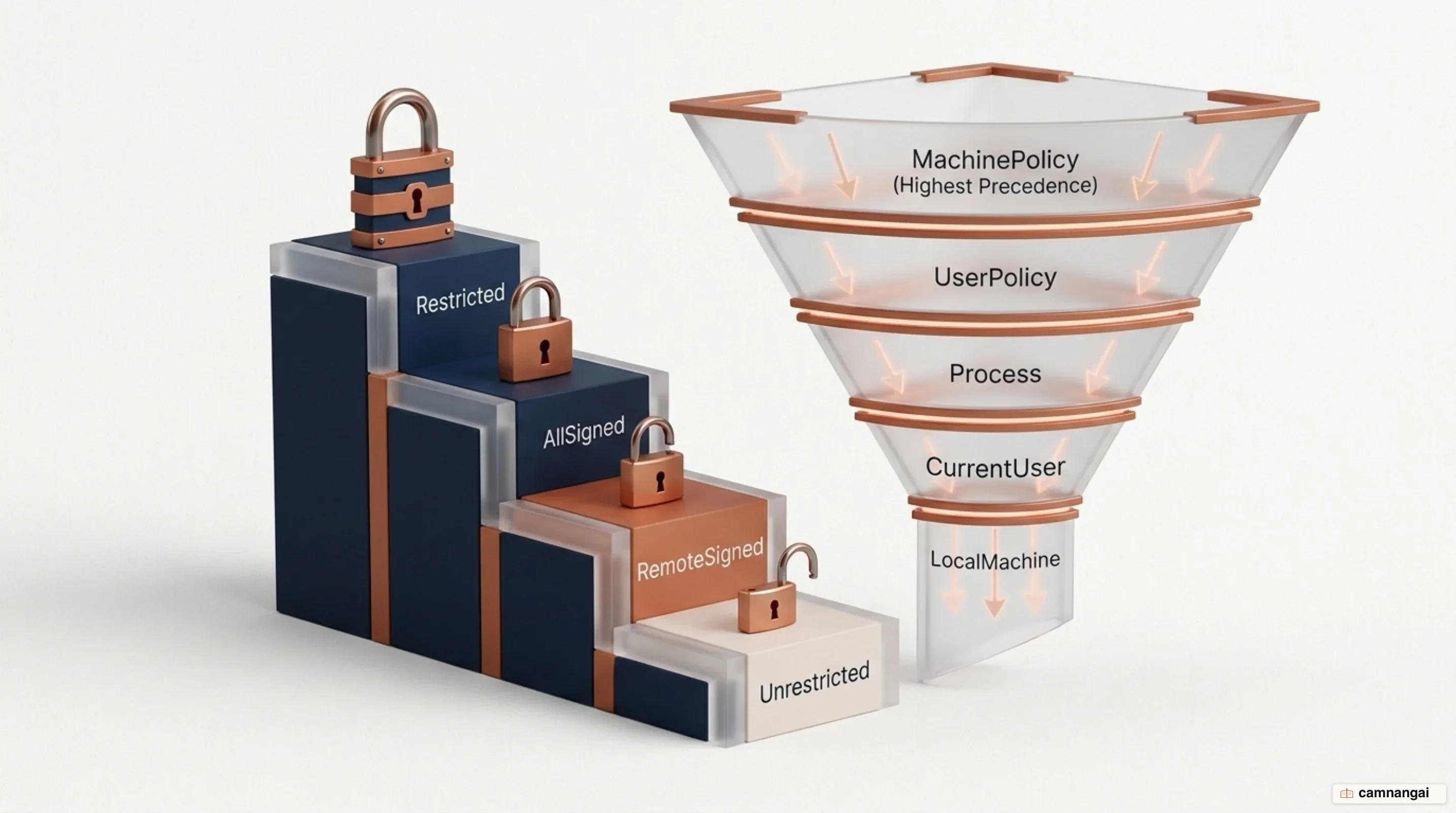
Administrative tasks, such as Stop-Service or modifying machine-wide settings, require elevation. PowerShell does not participate in User Account Control (UAC) prompts; if the shell is not "Run as administrator," these cmdlets return an "Access Denied" error. You can tell an elevated console by the "Administrator:" prefix in the title bar.
Modifying the execution policy
You can inspect the current policy status across all scopes — Machine, User, and Process — using the -List parameter. To let local scripts run, set the policy to RemoteSigned for the current user.
Set-ExecutionPolicy -ExecutionPolicy RemoteSigned -Scope CurrentUserTo check the result, run Get-ExecutionPolicy. Modifying the LocalMachine scope requires an elevated shell session, because it alters the system registry.
When do you actually need PowerShell?
PowerShell is required when administrative tasks scale beyond what a GUI or basic batch scripts can handle. It is the primary tool for managing cloud infrastructure in Azure or AWS, performing bulk Active Directory operations, and managing CI/CD pipelines. A GUI is fine for changing one user at a time, but you need PowerShell to audit thousands of objects, filter by attributes like login timestamps, and generate structured reports.
For a senior engineer, pwsh is the preferred tool because it manages environments in a way that is deterministic, repeatable, and cross-platform. It gives you "configuration as code" through DSC and granular control over system telemetry via CIM. PowerShell has the technical depth to manage modern, large-scale infrastructure with a precision text-based shells cannot reach.
References
- What is PowerShell? — Microsoft Learn
- about_Pipelines — Microsoft Learn
- Getting Started with PowerShell (PowerShell 101) — Microsoft Learn
- Differences between Windows PowerShell 5.1 and PowerShell 7.x — Microsoft Learn
- Install PowerShell 7 on Windows — Microsoft Learn
- Essential PowerShell Commands: A Cheat Sheet for Beginners — Netwrix
- PowerShell vs Bash: What's the Difference? — CBT Nuggets
- PowerShell vs CMD: Key Differences, Use Cases, and Benefits — Netwrix