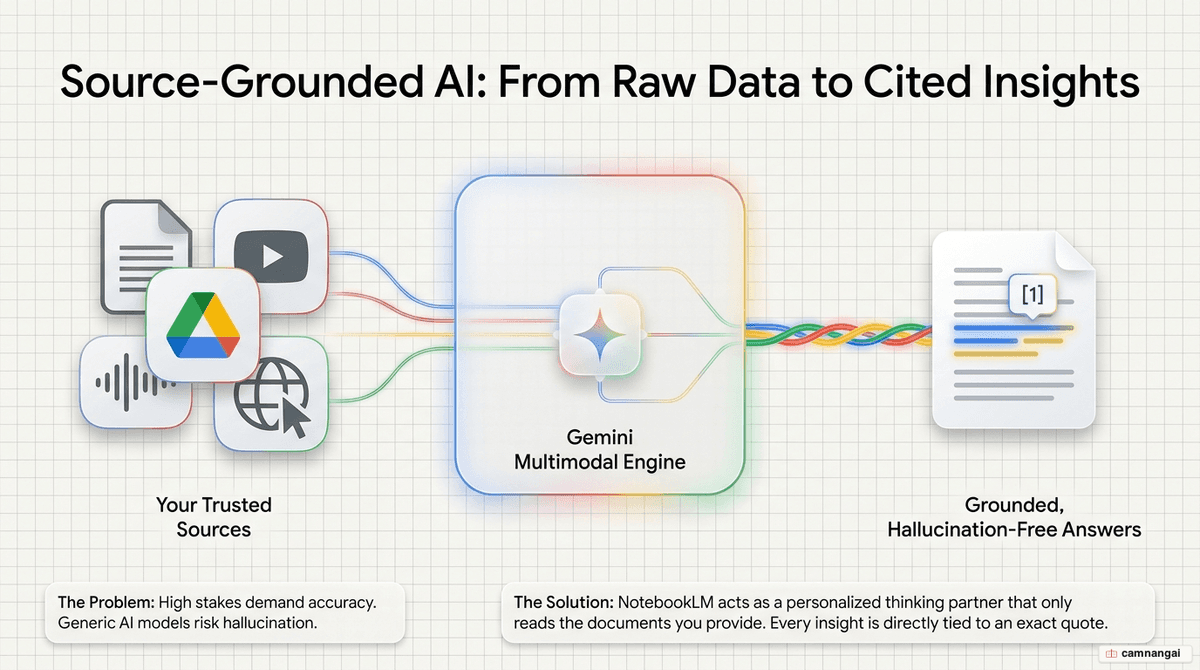
NotebookLM is an AI-powered research and thinking partner from Google, built on Gemini models to process and synthesize complex information. Unlike general-purpose chatbots that draw from the entire internet, NotebookLM is engineered around "source-grounding." This architecture limits the AI's knowledge base to the specific documents, files, and links you provide, which sharply reduces hallucinations and anchors every response in your trusted data.
You can run NotebookLM as a centralized workspace for diverse materials — project memos, meeting transcripts, technical documentation. By grounding the model in your context, you can query your data, generate summaries, and surface connections between disparate topics with high accuracy.
What is NotebookLM?
NotebookLM is a centralized AI workspace built for pulling information together. The primary unit of organization is the "notebook" — treat it as a project-specific workspace. This keeps research areas isolated, so the AI only references data relevant to the current task.
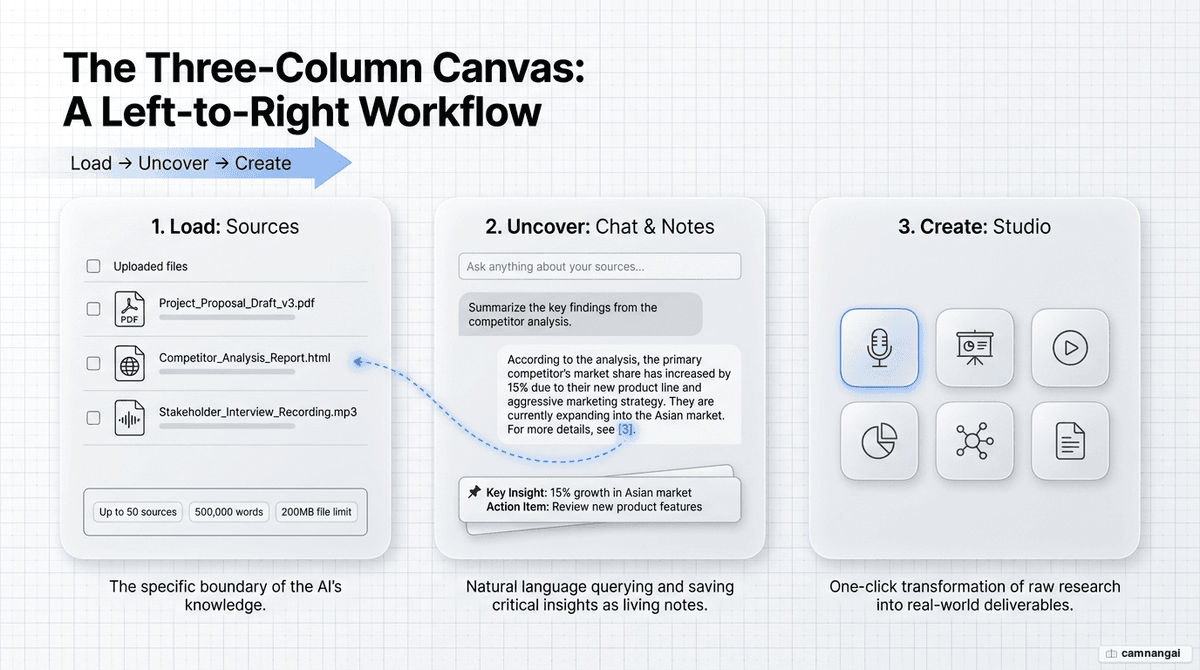
Capacity limits depend on your account:
- Free accounts: 100 notebooks with 50 sources each.
- Pro accounts: 500 notebooks with 300 sources each.
- Ingestion limits: individual files up to 200MB or 500,000 words.
How does NotebookLM work?
The core mechanism is Retrieval-Augmented Generation (RAG). When you submit a query, the system retrieves the relevant data segments from your sources to generate a response. The interface uses a three-column layout:
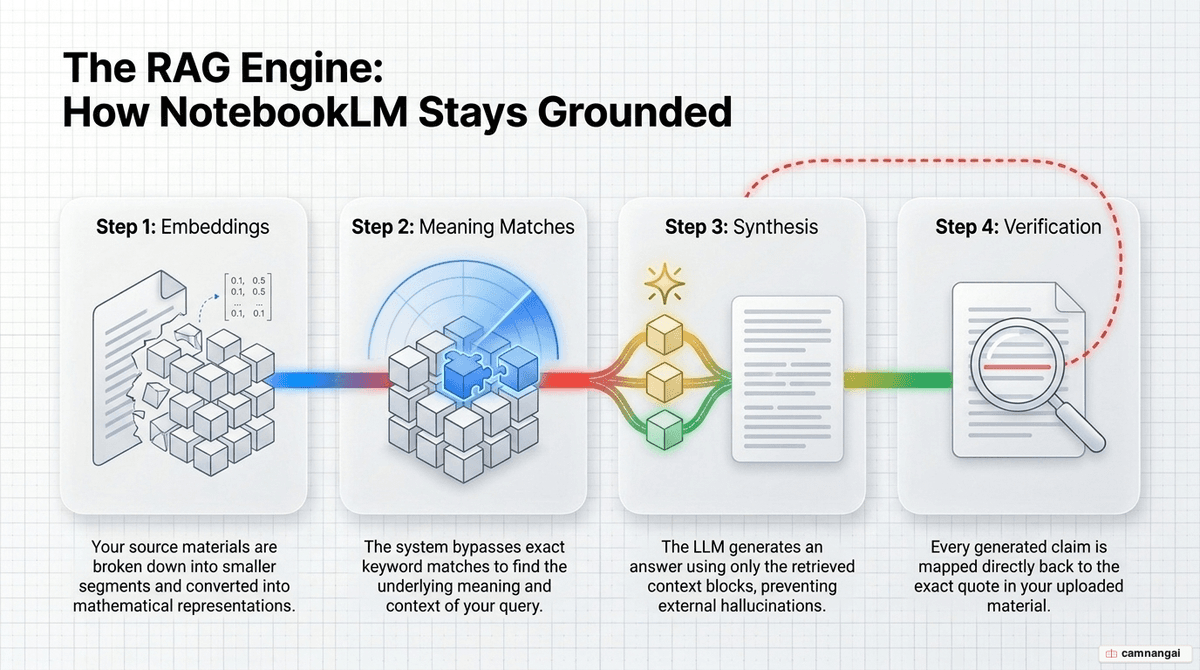
- Sources (left): manage and organize your data repository.
- Chat (middle): interact with sources in natural language to extract details.
- Studio (right): generate final deliverables and synthesized artifacts.
Gemini's multimodal capabilities let the system parse text, audio, and video together. To protect data integrity, NotebookLM uses a citation system: clicking a citation number highlights the exact quote in the source for immediate verification.
How do you add sources to NotebookLM?
You can build your repository from many formats:
- Direct uploads: PDFs, Google Docs, Slides, Sheets, and audio files.
- Multimedia: YouTube links, website URLs, and photos of handwritten notes.
- Research modes: use Fast Research for search-like queries that return ~10 sources in-app; use Deep Research to synthesize many sources into a full research report.
- Living documents: Google Drive files sync their latest changes, while uploaded PDFs stay static.
Pro tip: if a website blocks direct crawling, open it in "Reading Mode," copy the text, and use the "Copied Text" feature to paste it manually.
What can NotebookLM create from your sources?
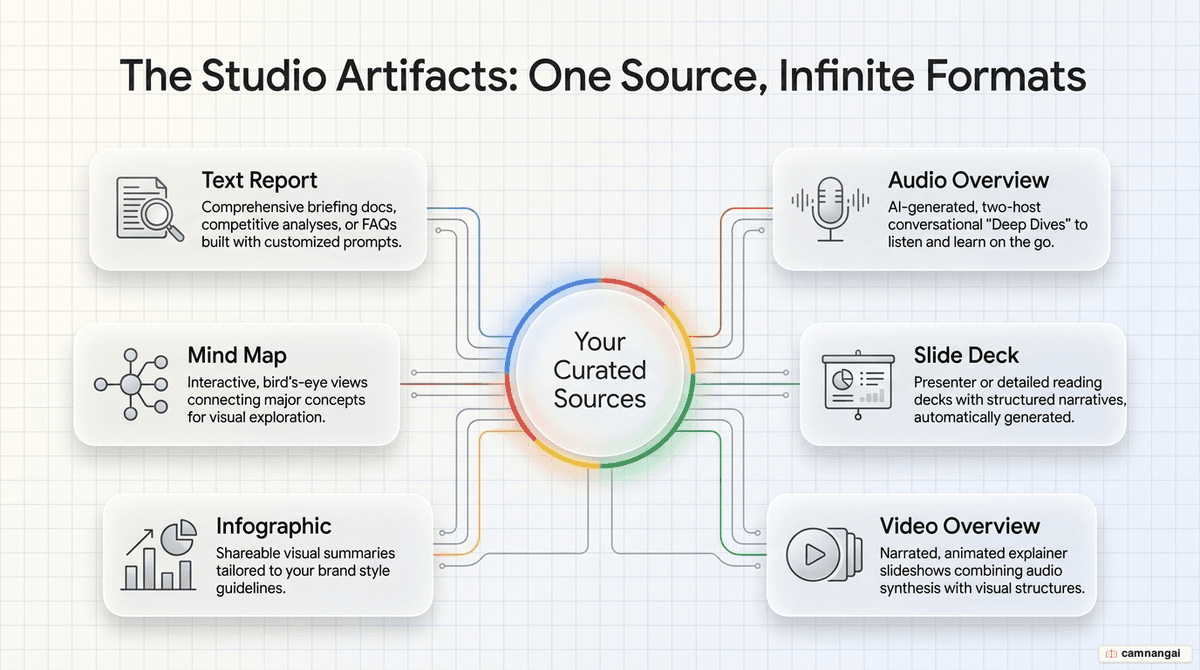
The Studio panel synthesizes sources into "artifacts" for different production stages.
Audio and video overviews
- Deep Dive podcasts: a conversational discussion between two AI hosts. Download the files for offline listening on a commute.
- Video overviews: AI-narrated slideshows. Cinematic Mode (for Ultra subscribers) uses Google's Veo model to generate animated sequences rather than static slides.
Visual and structural tools
- Mind maps: visual connection maps between topics.
- Slide decks: "Presenter" (visual) or "Detailed" (text-heavy) decks. These currently export as images rather than editable elements.
- Infographics: visual summaries in landscape, portrait, or square formats.
Text-based outputs
- Reports: briefing docs, timelines, and teaching guides.
- Data tables: useful for structured competitive comparisons.
- Study aids: auto-generated multiple-choice quizzes and flashcards.
How do you customize NotebookLM's output?
Use "Custom Instructions" to frame responses around specific goals.
- Workflow tip: draft the logic for your Custom Instructions in a foundational model, then paste it into NotebookLM.
- Audio customization: pick a format like "Debate," "Critique," or "Brief Summary," and set focus areas for the AI hosts.
- Visual customization: specify color palettes, target audiences (e.g. board members), and visual styles (e.g. "whiteboard" vs. "instructional").
- Source Guide: use the "Source Guide" at the top of a document to generate suggested questions for dense material.
What can you use NotebookLM for?
Professional project management
Run a notebook as a centralized hub for meeting transcripts, internal memos, and competitive research. Auto-generated summary reports let you onboard team members quickly.
Academic and complex learning
Build a learning path with "progressive complexity layering." Learn technical topics like LangChain or RAG by anchoring them to concepts you already know (e.g. "Explain LangChain by contrasting it with Make.com").
Personal organization
- Travel planning: aggregate restaurant reviews and local guides into a custom itinerary.
- Health and finance: track health reports or financial statements over time to spot trends or tax deductions.
What are the limitations of NotebookLM?
- Accuracy-creativity tradeoff: the tool is optimized for grounding, so it is poor at drafting fiction or code from scratch.
- Technical polish: infographics can contain text typos, and slide decks are not yet editable.
- Usage quotas: free accounts get 10 Deep Research queries per month; Pro accounts get 20 per day.
- Data persistence: deleted notes cannot be recovered.
FAQ
Is my data used to train Google's AI models? No. Google does not use your content for foundational model training if you are a Workspace user or an individual user — unless you explicitly share feedback.
Can I share my notebook with others? Yes. You can invite collaborators as viewers or editors, managing permissions much like Google Docs.
How do I handle large documents the AI might miss? Break enormous documents into smaller pieces so the RAG system doesn't hit context capacity and skip critical data.