Claude Code commands are the /-prefixed slash commands that control Claude
Code from inside a session — switch models, manage
permissions, clean up context, or run a whole workflow with a single line.
Together with the keyboard shortcuts, they are the fastest way to get fluent with the tool. This article collects every useful command and shortcut into quick-reference tables you can use immediately.
Most of the friction new users hit doesn't come from commands being hard — it comes from not knowing a command already exists. A command is only recognized at the start of your message; any text after the command name is passed to it as arguments. You don't need to memorize this cheatsheet — you only need to know each command exists so you can reach for it at the right moment.
If you've never used the tool before, read What is Claude Code first, then come back to this reference.
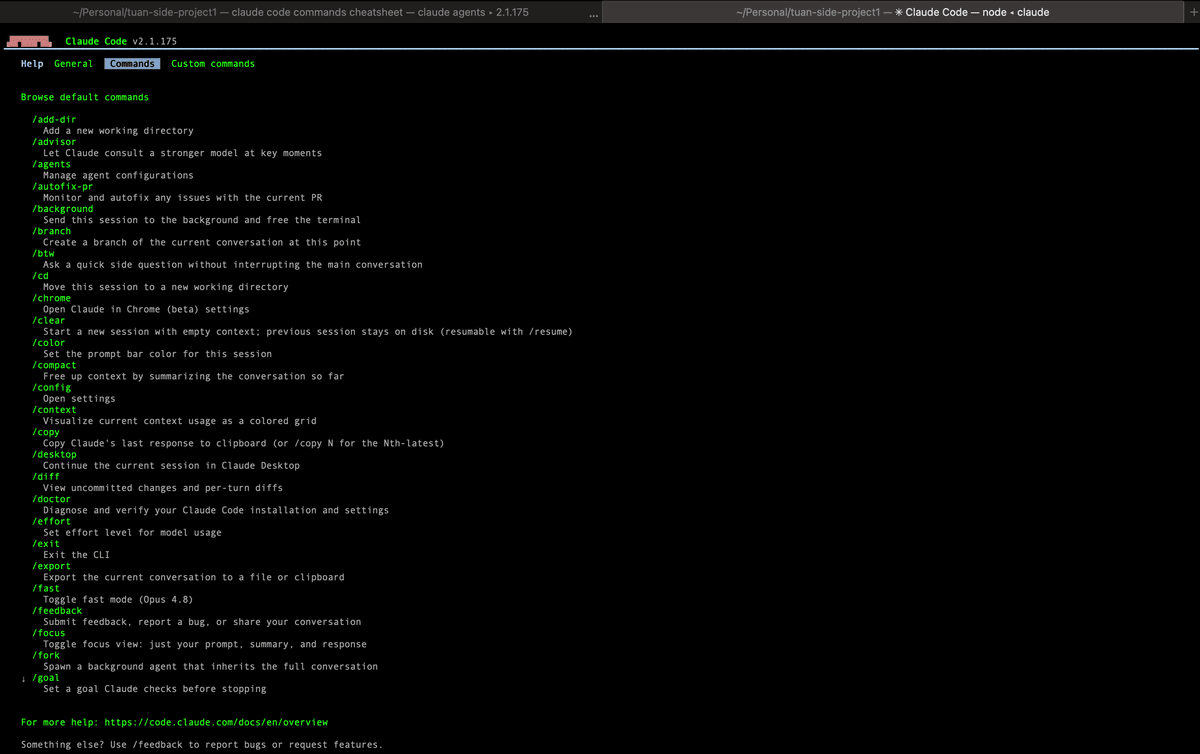
Essential commands for everyday sessions
These Claude Code commands carry you through a normal working session: starting new work, returning to old work, undoing mistakes, and getting results out.
| Command | Purpose |
|---|---|
/help | List all available commands |
/clear | Start a new conversation with empty context; the old one stays available. Aliases: /reset, /new |
/resume | Reopen a previous session by name, or open the session picker. Alias: /continue |
/rewind | Roll code and conversation back to an earlier checkpoint. Aliases: /undo, /checkpoint |
/model | View or switch the active model, with arrow keys to adjust effort level |
/plan | Enter plan mode before a large change, optionally with a task description |
/btw | Ask a quick side question without bloating the main conversation |
/diff | Open an interactive diff viewer: uncommitted changes and per-turn diffs |
/copy | Copy the last response, or pick individual code blocks |
/export | Export the conversation to a file or the clipboard |
/rename | Name the current session so it's easy to find in /resume |
/exit | Quit the CLI. Alias: /quit |
The standout here is /rewind: every change is checkpointed automatically, so you can try a bold direction and return to your starting point without losing anything. Press Esc twice and the rewind menu appears instantly.
Managing context and cost
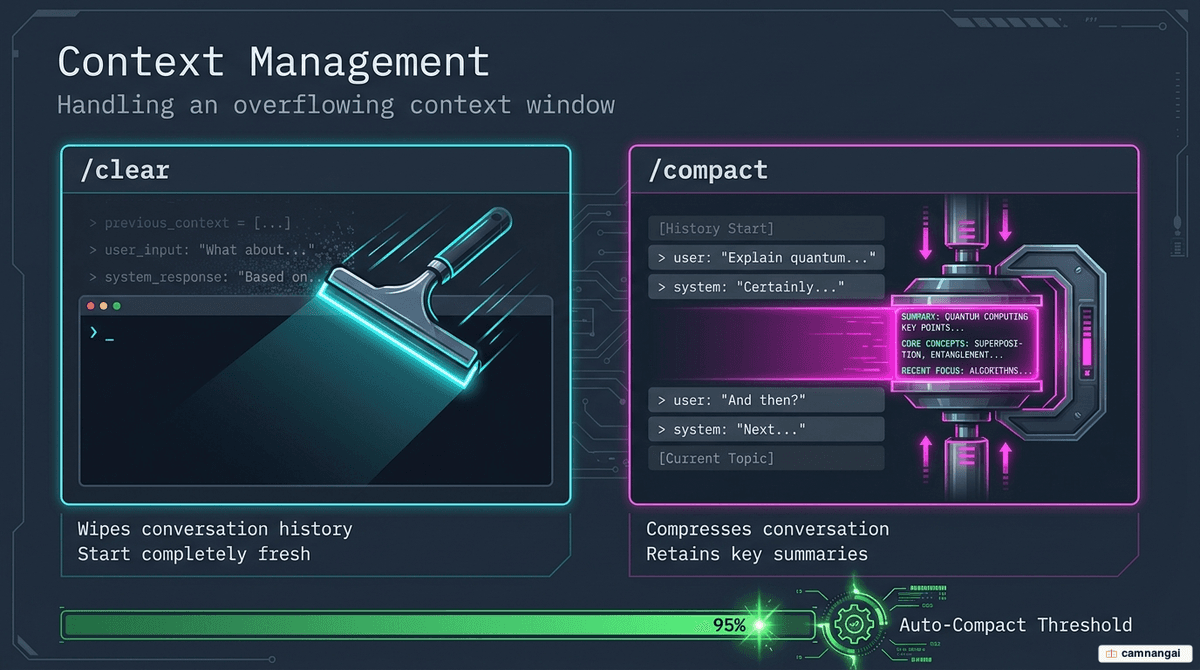
The context window is the total amount of text the model can hold. The longer the session, the fuller it gets — and these commands let you see it, clean it, and price it.
| Command | Purpose |
|---|---|
/context | Visualize context usage as a colored grid, with warnings and optimization suggestions |
/compact | Summarize the conversation to free context; optionally pass focus instructions |
/usage | Show session cost, plan limits, and activity stats. Aliases: /cost, /stats |
The quick distinction: /clear wipes everything for a different task, /compact condenses so you can continue the current one. When context hits about 95%, auto-compact kicks in and preserves the essential information, so long sessions continue without breaking.
Setup and configuration commands
A first session in a repo usually follows this sequence: /init generates a starter CLAUDE.md, /memory refines it, /mcp and /agents connect the servers and subagents the project needs, then /permissions sets the approval rules you want.
| Command | Purpose |
|---|---|
/init | Initialize the project with a CLAUDE.md guide |
/memory | View and edit CLAUDE.md files, toggle auto-memory |
/permissions | Manage allow / ask / deny rules per tool. Alias: /allowed-tools |
/config | Open settings: theme, default model, editor mode. Alias: /settings |
/mcp | Manage MCP (Model Context Protocol) server connections and OAuth |
/agents | Create and manage subagents for delegated work |
/hooks | View hook configurations — shell commands that run on tool events |
/skills | List available skills, hide the ones you don't use |
/add-dir | Grant file access to an additional directory outside the project |
/status | Show version, model, account, and connectivity |
/doctor | Diagnose installation and settings; press f to have Claude fix reported issues |
/login / /logout | Sign in or out of your Anthropic account |
CLAUDE.md is read automatically each session — it's where project conventions, architecture, and constraints live so you don't repeat them every time you open the terminal.
Keyboard shortcuts worth memorizing
Shortcuts save more keystrokes than commands do, because they work even while Claude is mid-response.
| Shortcut | Action |
|---|---|
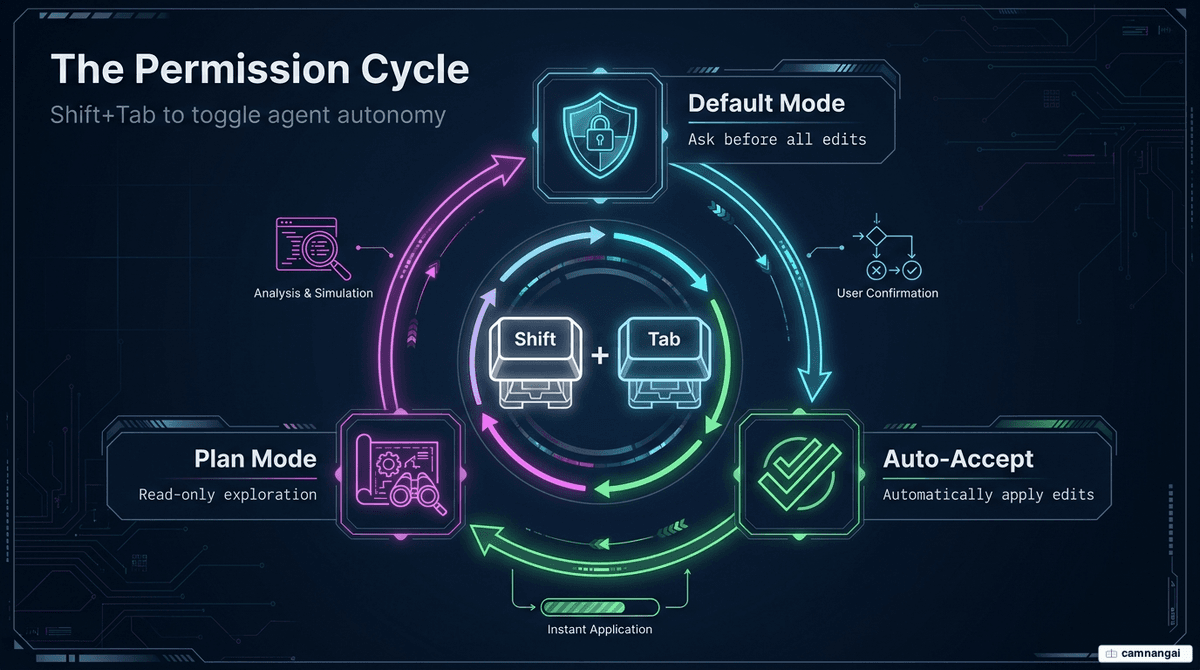
Shift+Tab | Cycle permission modes: default → auto-accept edits → plan mode |
Esc | Interrupt the current response immediately |
Esc Esc | Open the rewind / checkpoint menu |
Ctrl+C | Cancel current input, or exit on an empty prompt |
Ctrl+R | Reverse-search your prompt history |
Ctrl+O | Expand the verbose transcript view |
Ctrl+G | Open an external editor — handy for multi-line input |
Ctrl+T | Toggle the running task list |
Ctrl+V | Paste an image from the clipboard — Ctrl even on Mac, not Cmd |
↑ / ↓ | Scroll through previous prompts |
@ + path | Reference files or directories right in the prompt |
? | Show the shortcut table for your current terminal / IDE |
Shift+Tab is the most valuable row in the table: plan mode lets Claude read and analyze the codebase in read-only mode before proposing an implementation — success rates on larger tasks improve noticeably. If you work in VS Code or certain terminals, also run /terminal-setup to configure Shift+Enter for newlines.
Hidden commands and lesser-known features
Anthropic ships features frequently, and not everything stands out in the docs. The group below is little known but immediately useful.
| Command / feature | Purpose |
|---|---|
claude -p "..." | Non-interactive mode: returns a result and exits, and accepts piped input from other commands |
! + shell command | Run a shell command directly (e.g. !git status) and feed its output into the conversation |
/statusline | Customize the status line — track token consumption in real time |
/insights | Generate a report analyzing your sessions: project areas, interaction patterns, friction points |
/tasks | View and manage everything running in the background of the current session |
/background | Detach the current session to run as a background agent and free the terminal. Alias: /bg |
/teleport | Pull a Claude Code on the web session into this terminal |
/output-style | Switch response styles: default (concise), Explanatory, or Learning |
/release-notes | Browse the changelog per version right in the CLI |
The -p mode fits automation scripts and CI/CD because it needs no interactive session:
claude -p "explain this function"
cat logs.txt | claude -p "summarize the main errors"
There's also an experimental feature for large projects: set the environment variable CLAUDE_CODE_EXPERIMENTAL_AGENT_TEAMS=1 to enable agent teams — a lead agent coordinates multiple independent Claude Code instances running in parallel.
Create your own custom slash commands
A custom command is just a Markdown file. Put it in .claude/commands/ for a project-specific command, or ~/.claude/commands/ for one that works everywhere. The filename becomes the command name.
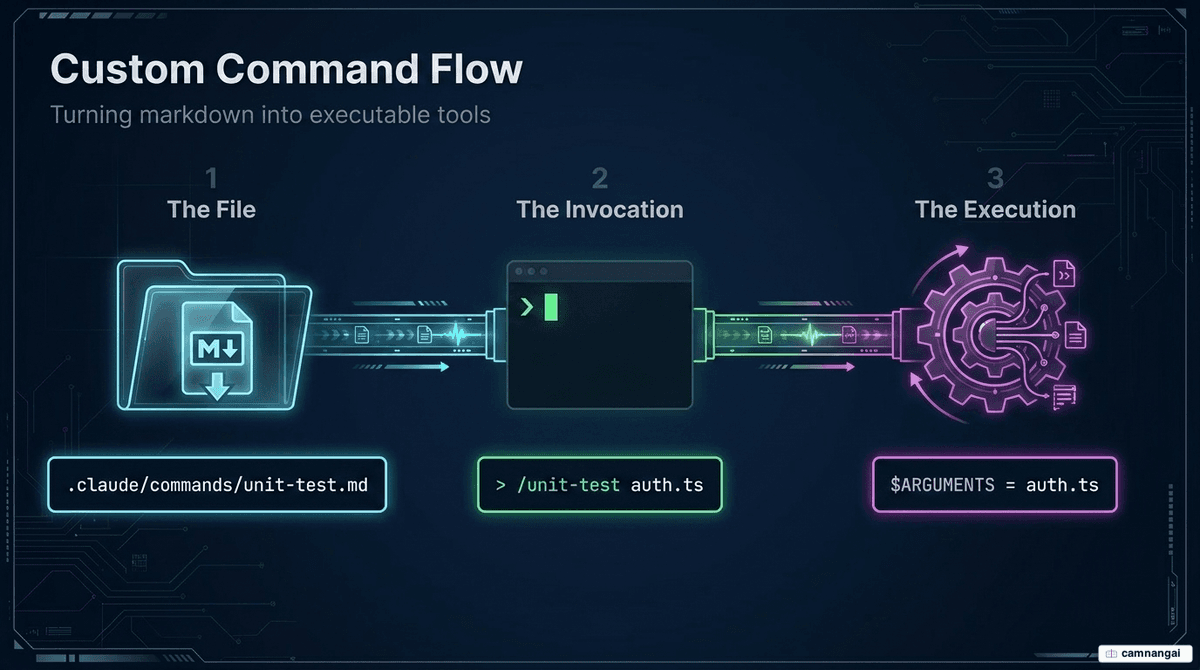
<!-- .claude/commands/unit-test.md -->

Generate comprehensive unit tests for $ARGUMENTS.
Include edge cases and error handling.
Type /unit-test src/utils.js and src/utils.js is substituted into $ARGUMENTS. The rule of thumb for what to turn into a command: anything you repeat — commits in your team's format, test runs, production builds — deserves a Markdown file.
When a command needs a multi-step workflow or references to supporting files, upgrade it to a skill: the same mechanism but more powerful, with disable-model-invocation: true available if you want it to be user-invoked only.
FAQ
How do I quickly see every command I have? Type / to open the full command menu, then keep typing letters to filter. /help lists everything with descriptions. Note that not every command appears for every user — availability depends on your platform, plan, and environment.
What's the difference between /clear and /compact? /clear wipes the conversation — use it when switching to a completely new task. /compact summarizes the conversation to save context — use it mid-task to keep going. A cleared conversation can still be reopened with /resume.
Do custom commands work across all my projects? It depends on where the file lives: ~/.claude/commands/ works in every project on your machine, while .claude/commands/ only works inside the project that contains it. Keep general-purpose and project-specific commands in those two separate folders.
Do I need to memorize all the Claude Code commands? No. Knowing about ten core ones — /clear, /compact, /plan, /resume, /rewind, /permissions — plus Shift+Tab covers smooth daily work; look the rest up in the tables when needed.