NotebookLM is a source-grounded research and synthesis system designed to mitigate the hallucination issues inherent in ungrounded large language models (LLMs).
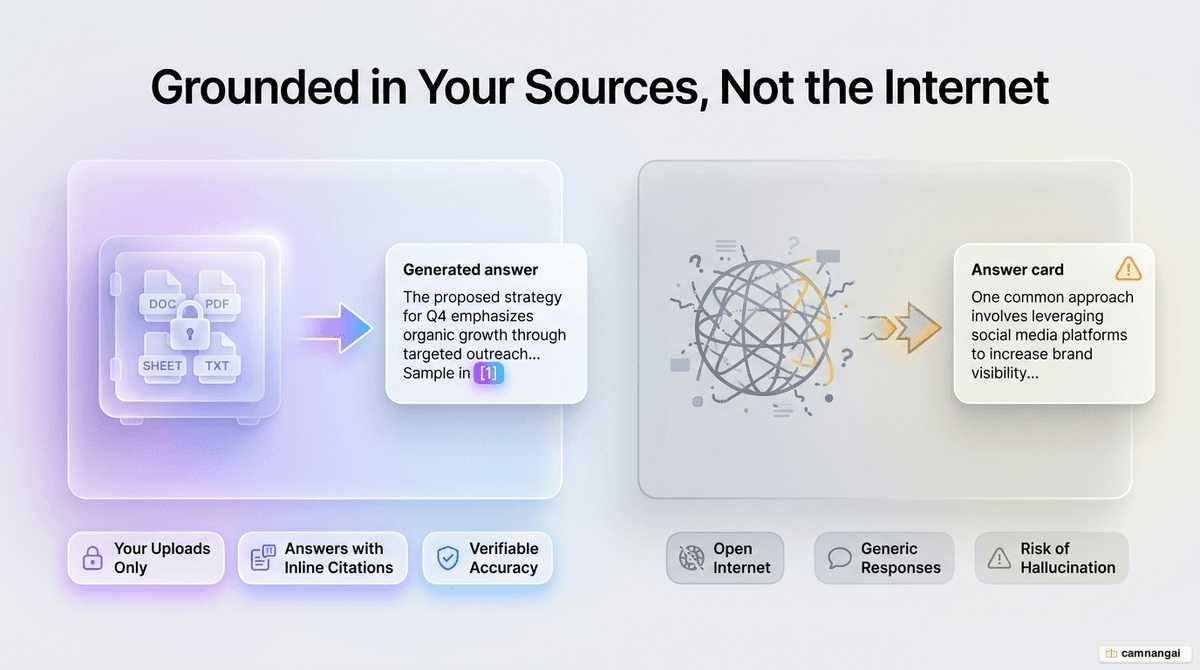
Because it limits the model's knowledge base to the documents you upload, NotebookLM for students keeps retrieval-augmented generation (RAG) anchored to your actual course materials. The AI does not draw from general internet data; it answers from your own knowledge base.
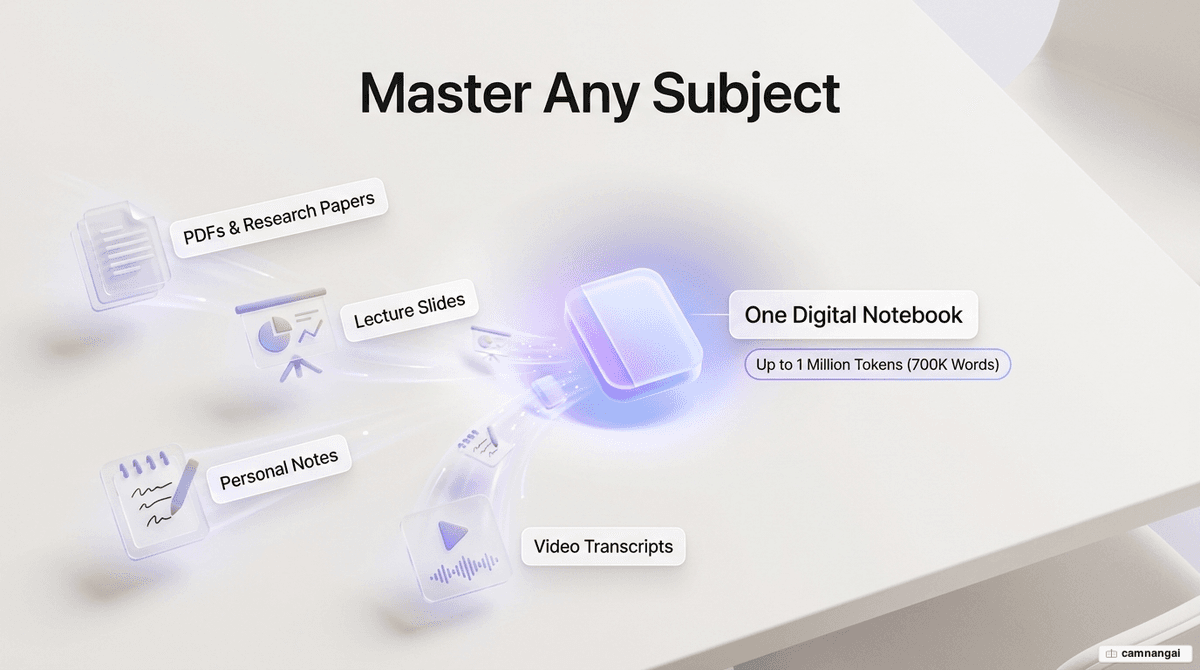
The system runs on the Gemini 1.5 Pro model with a 2-million-token context window. That window holds about 700,000 words—roughly eight standard volumes—so it can cross-reference an entire semester's reading at once. It finds embedded text within that window with a 99% accuracy rate, which makes it reliable enough for close academic work.
Because every response is grounded in the material you provide, the tool builds study aids while staying transparent through inline citations. You can check any AI-generated summary against the source text on the spot, which makes it easier to engage closely and accurately with dense scholarly material.
What is NotebookLM and why does it suit students?
NotebookLM uses a "source-grounding" mechanism to set itself apart from generic AI tools. Where standard LLMs answer from broad pre-training data, NotebookLM points Gemini 1.5 Pro's reasoning at your corpus alone. That approach locates text embedded within its 2-million-token window with a 99% accuracy rate.
For schoolwork, that buys you three things:
- Faster lookups: it finds a specific concept across thousands of pages of textbook chapters and lecture notes in seconds.
- Clearer synthesis: it turns dense academic jargon into plain summaries that stay grounded in the text.
- More reliable answers: because the model can only use your sources, the risk of hallucinations—made-up facts—drops sharply. The tool is currently free to use.
How do you start: create a notebook and upload course materials?
To get started, go to notebooklm.google and create a new notebook. Each notebook is a self-contained workspace for one course's materials.
You can populate the context window by uploading:
- Local files: PDFs and unstructured text files.
- Google Workspace: Direct integration with Google Docs and Google Slides.
- Web sources: Direct URL ingestion for websites.
- Video content: Direct YouTube URL ingestion is not currently supported; you must copy and paste video transcripts into a supported document format.
Data uploaded via school or organization accounts is kept private to that domain and is not used for model training. For individual accounts, Google does not use uploaded materials to train its models unless you explicitly share feedback through the reporting mechanism.
How do you summarize and quickly grasp difficult concepts?
Try "priming": generate a summary before you read the full text. It gives you a mental scaffold of the main ideas. Instead of worrying about "spoilers," seeing the core concepts first lets your brain spend the reading or lecture filling in the details rather than building the structure from scratch.
Use the chat for the Feynman Technique: ask for a "6th-grade level" explanation of a hard theorem to lay a foundation, then raise the complexity step by step. When you hit a table, a formula, or dense jargon, the AI can restate it in simpler language using the context of your own reading. Every response carries inline citations; click one and it jumps you straight to the passage in the source so you can check the context.
How do you make quizzes, flashcards, and study guides to revise?
The Notebook Guide generates interactive revision tools grounded in your sources.
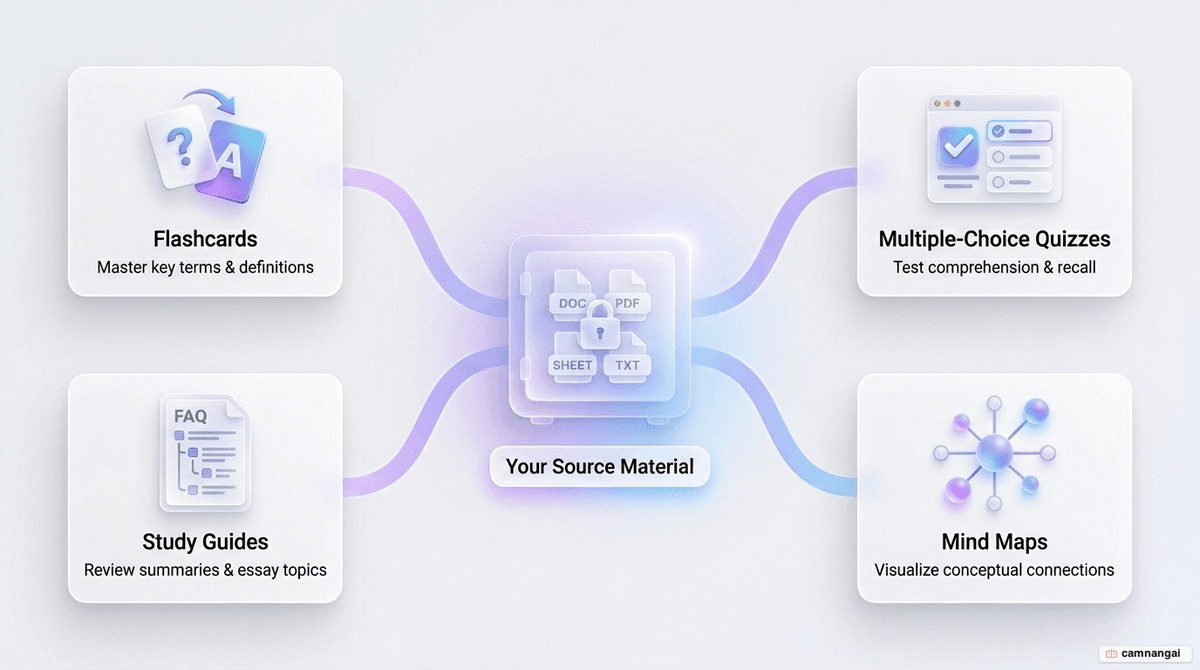
- Flashcards: Automatically extract key terms, dates, and definitions. If a concept is unclear, use the "explain" button to retrieve a detailed overview and its original source location.
- Practice quizzes: Generate 10-question multiple-choice or short-answer tests. The system provides rationales for incorrect answers, helping you identify knowledge gaps.
- Study guides: These automate the creation of glossaries, timelines of key events, and essay question banks.
- Export for spaced repetition: Flashcards can be exported to CSV for integration into external Spaced Repetition Systems (SRS) like Anki to optimize long-term retention.
How do Audio Overviews and the Learning Guide help you study?
NotebookLM supports dual coding—pairing verbal and visual inputs—through several output formats.
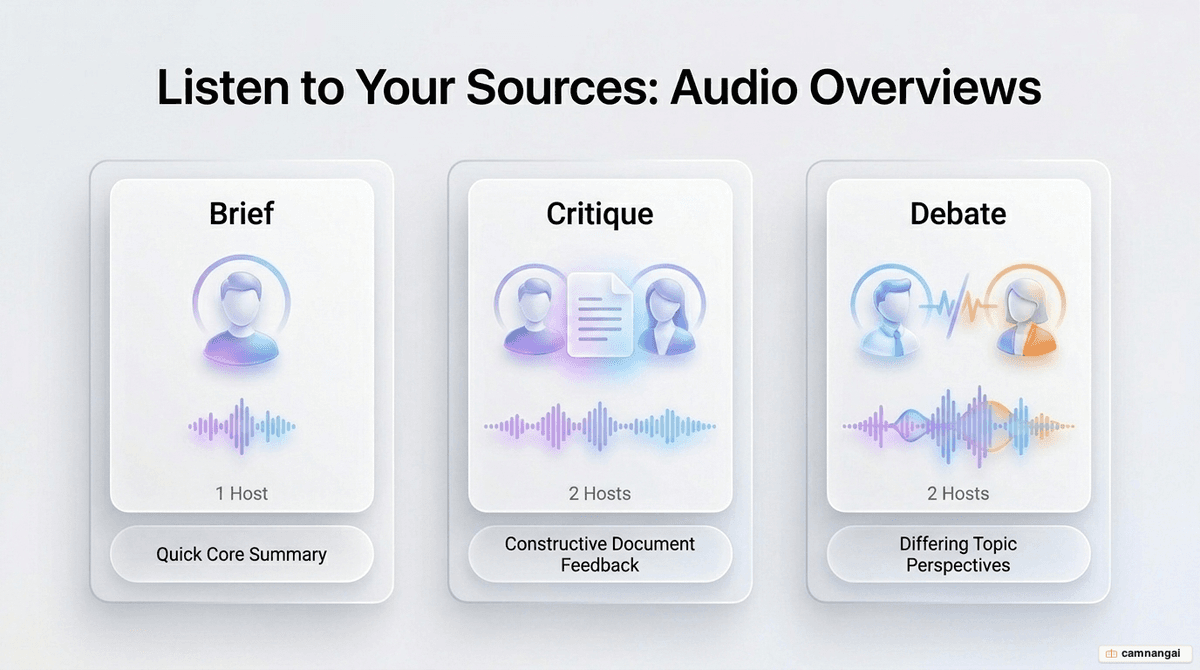
Audio Overviews create podcast-style discussions between two AI hosts. You can select from three formats:
- Brief: A single AI host summarizes the core ideas of the sources.
- Critique: Two hosts provide constructive feedback on your uploaded essays or research.
- Debate: Hosts discuss competing perspectives, ideal for preparing for seminars.
The Learning Guide acts as a personal tutor. Rather than handing you the answer, it asks probing, open-ended questions that walk you through the problem step by step. Visual learners can turn to Video Overviews, which turn documents into narrated slides to help picture abstract concepts. Mind Maps are there too, mapping out how information across your sources connects and nests.
How do you use NotebookLM to practice essay writing?
Use the AI to move from passive reading to active writing. Ask the chat to "identify potential exam or essay topics based on these materials." Once you have one, ask for a structured outline of a specific idea—say, the differences between preventable, unavoidable, and intelligent failures.
After you draft your essay, upload it as a source. Ask for feedback on whether the argument holds together, how it's structured, and how well the evidence backs it up. That lets you sharpen your work against the standards of the original scholarly sources sitting in your context window.
What are NotebookLM's limits and how should you use it well?
While grounding reduces errors, NotebookLM relies on Gemini's underlying reasoning, which is still prone to occasional hallucinations and bias. Treat it as a co-pilot, not a substitute for primary reading.
- Audit citations: Always click inline citations to ensure the AI has not misconstrued the intent of the source.
- Monitor consistency: Use your own judgment if the AI gives varying answers across sessions.
- Report inaccuracies: Use the "thumbs-down" icon to report incorrect or inappropriate responses, which helps improve the model's safety and grounding accuracy.
FAQ
How is NotebookLM different from ChatGPT? NotebookLM uses source-grounding, meaning its responses are constrained to your uploaded documents. This retrieval-augmented generation approach significantly reduces hallucinations compared to general-purpose LLMs that rely on broader, ungrounded training data.
Is NotebookLM free? Yes. NotebookLM is currently available at no cost, providing access to the Gemini 1.5 Pro model and its 2-million-token context window for academic and professional use.
Can I upload YouTube videos? You cannot ingest YouTube URLs directly. You must copy-paste the transcript into a supported file type (PDF, Google Doc, or note) to use video content as a grounded source.
How do I report an inaccurate response? Click the "thumbs-down" icon next to any incorrect response. This feeds back to the system to improve future accuracy and safety.